AULA Keyboard Guide: Bluetooth Setup, Color Change, Cleaning & Keyboard Layout Explained
What is an AULA keyboard?
- Easy to live with: simple connection options and fast switching
- Fun to customize: RGB, keycap swaps, and (on many models) enthusiast-friendly switch compatibility
- Desk-friendly layouts: options like 75% layouts that save space without deleting the keys you actually use
- Key Takeaway: If you want one keyboard that can game at night, handle emails during the day, and still look like your setup, the AULA lineup is built around that “one keyboard, many use cases” idea.
AULA keyboard vs. “mechanical keyboard” vs. “custom keyboard”
- Mechanical keyboard: a keyboard that uses individual mechanical switches under each key. The feel and sound vary depending on switch type.
- AULA mechanical keyboard: a mechanical keyboard made by AULA.
- Custom keyboard: a keyboard you modify or build to your preferences—switches, keycaps, foam, stabilizers, firmware, layout, and sound tuning. Many AULA models are “custom-friendly” even if you never build from scratch.
How to connect AULA keyboard (Bluetooth & wired guide)
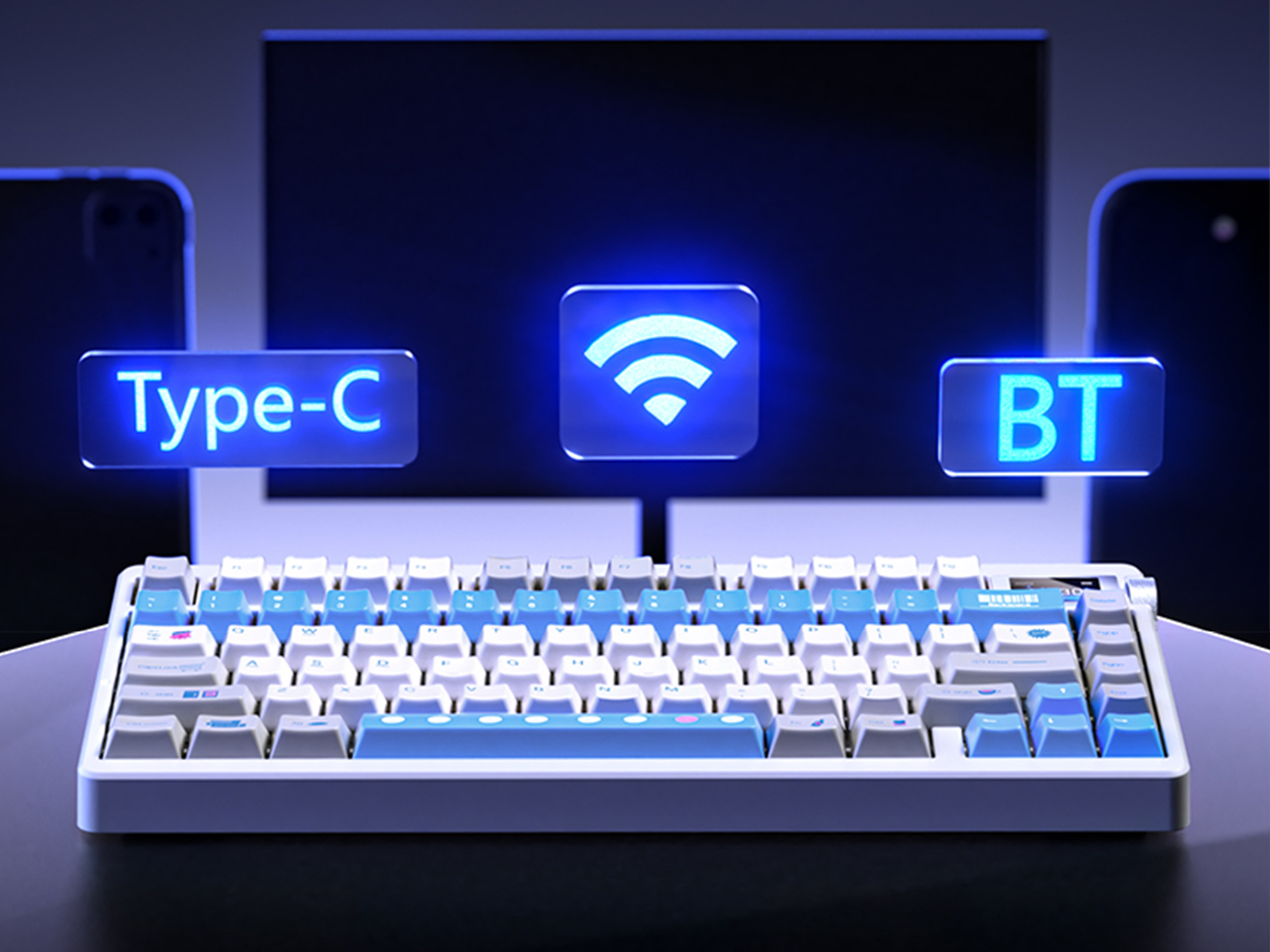
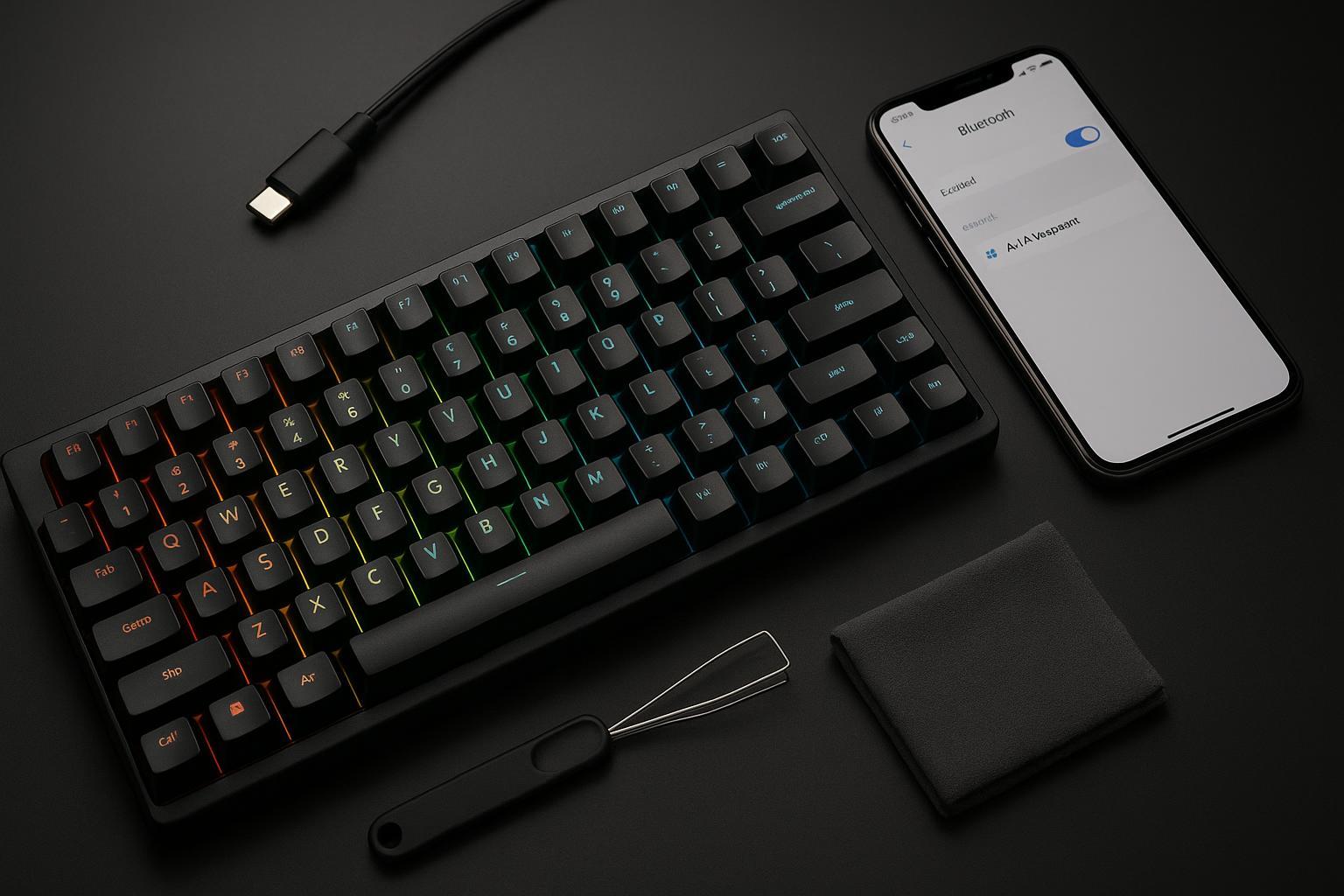
- Wired (USB-C): the simplest and most reliable option—great for desktops and competitive play.
- Bluetooth: best for laptops, tablets, phones, and multi-device setups.
- 2.4G wireless (dongle): common on gaming-focused boards; tends to feel more “wired-like” than Bluetooth.
Wired setup (USB)
- Plug the keyboard into your PC/Mac using the included USB cable.
- Wait a few seconds for the OS to detect it.
- Test input in a text field.
How to connect AULA keyboard Bluetooth (step-by-step)
This section targets the exact long-tail query how to connect aula keyboard bluetooth, but the steps are written to be usable whether you’re on Windows, macOS, iPadOS, Android, or a console that supports Bluetooth keyboards.
Step 0: Know your model’s device-slot shortcut
- Fn + 1 / 2 / 3: switch between Bluetooth devices
- Hold Fn + 1 / 2 / 3 for ~3 seconds: enter pairing mode for that slot
Step 1: Put the keyboard in Bluetooth mode
- Flip the mode switch (if your model has one) to Bluetooth.
- If there’s no switch, use the model’s mode shortcut.
Step 2: Enter pairing mode
- Press and hold your pairing shortcut (commonly Fn + 1 / 2 / 3) until the indicator starts flashing rapidly.
Step 3: Pair on your device
- Settings → Bluetooth & devices → Add device → Bluetooth → select your keyboard.
- System Settings → Bluetooth → select your keyboard.
- Settings → Bluetooth → select your keyboard.
Step 4: Confirm and test
- Type in Notes or a browser address bar.
- If some keys behave strangely (wrong symbols, unexpected characters), skip ahead to the language/layout section—this is often a layout mismatch, not a “bad keyboard.”
Quick troubleshooting if Bluetooth won’t connect
- Move closer and remove obstacles (Bluetooth can be picky with metal desks and PC cases).
- Unpair old entries: remove the keyboard from your device’s Bluetooth list, then re-pair.
- Use a different slot (Fn + 2 instead of Fn + 1).
- Charge the keyboard: low battery can cause flaky pairing.
- Test wired: if wired is fine, the keyboard is likely OK.
⚠️ Warning: If you’re pairing on a work laptop with security policies, Bluetooth peripherals may be blocked. In that case, wired mode is usually the fastest fix.
Keyboard layout explained (QWERTY, FN key, basics)
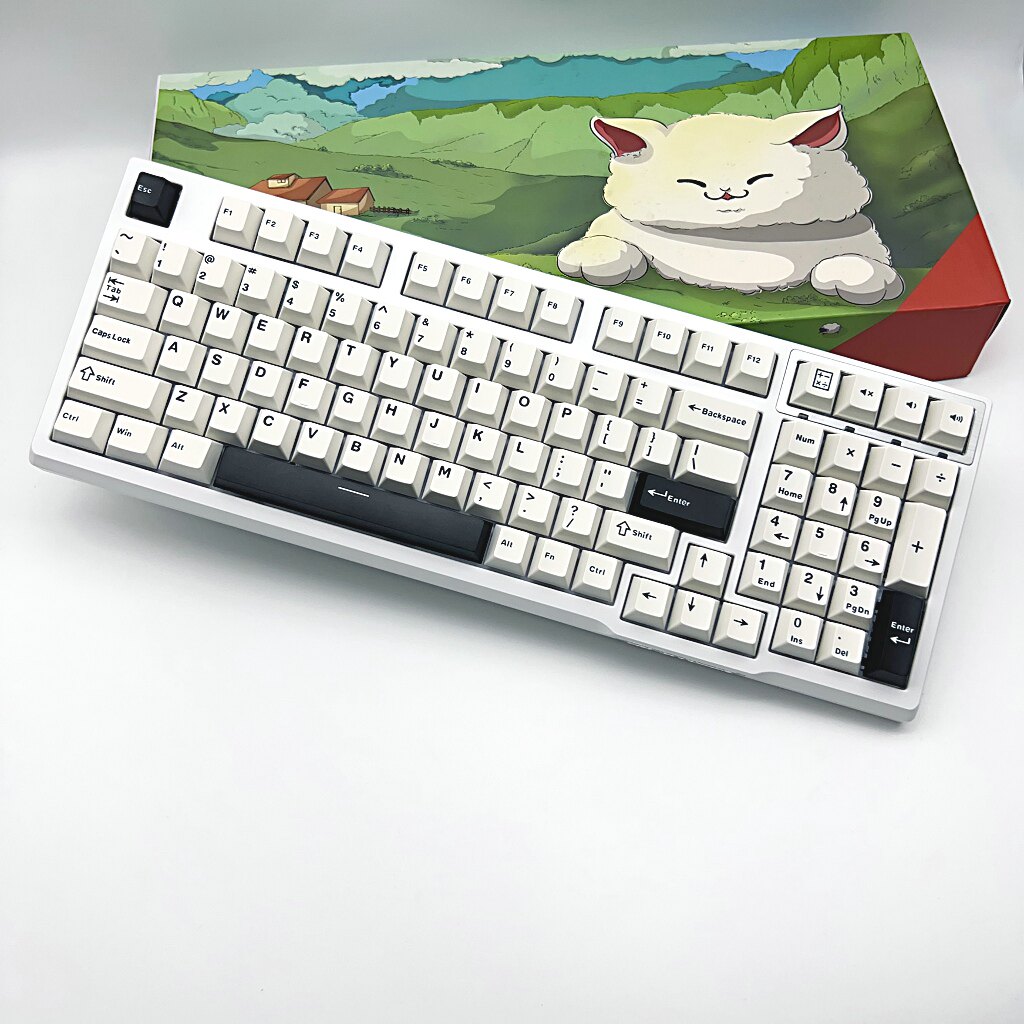
- The physical layout: where keys are placed and shaped (ANSI vs ISO, 75% vs full size).
- The letter arrangement: QWERTY vs AZERTY vs QWERTZ, etc.
- The operating system input layout: what your OS thinks the keyboard is (language + mapping).
QWERTY keyboard basics
What is Fn on keyboard?
- media keys (volume, play/pause)
- backlight controls (brightness, modes)
- device switching (Bluetooth slot keys)
- navigation keys (Home/End/Page Up/Page Down)
75% vs full size: why layouts feel different
- function row (F1–F12)
- arrow keys
- navigation cluster
- number pad
ANSI vs ISO: the “Enter key” difference that matters
- ANSI (common in the US): long, horizontal Enter key.
- ISO (common in parts of EU): taller Enter key and a slightly different key next to Left Shift.
How to change AULA keyboard color and lighting
- On-keyboard shortcuts (fast)
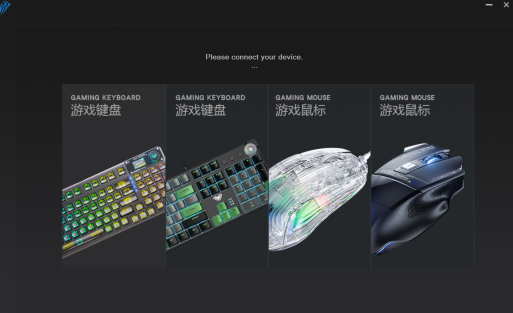
- Software/driver control (deeper customization)
Shortcut method (works on many models)
- Fn + Right Arrow: cycle lighting modes
- Fn + Up / Down Arrow: brightness up/down
- Fn + Left / Right Arrow: change effect speed (varies)
- Fn + Tab: cycle static colors (varies)
- Try the common shortcut (Fn + Right Arrow).
- If it doesn’t respond, check your model’s shortcut table (your manual).
Software method (for deeper customization)
- you want consistent lighting profiles
- you want key remaps
- you want a cleaner workflow than memorizing every shortcut
Pro Tip: If your lighting doesn’t change, confirm you’re not in a “static off” brightness level first (many keyboards let you dim to off).
How to switch language and input settings on keyboard
- how to switch language on keyboard
- how to change language on keyboard
- how to change keyboard language
- how do i change keyboard layout
Windows 10/11: change keyboard language and layout
Fast ways to switch
- Win + Space: cycle input languages/layouts
- Taskbar language indicator: click to select a layout
How to change default Windows keyboard shortcuts
- Settings → Time & language → Typing
- Advanced keyboard settings
- Input language hotkeys / language bar options
- Change Key Sequence
Common “layout problems” that aren’t your keyboard
- Did Windows switch to another language (easy to do accidentally)?
- Are you on an ISO layout in software but using an ANSI keyboard (or vice versa)?
- Did you install multiple layouts and now Win+Space cycles unexpectedly?
Advanced tips: sound, shortcuts, and customization
How to make keyboard sound more creamy
- lower-pitched
- less hollow
- less sharp on upstroke
- more consistent across keys
Stabilizer tuning (biggest win on larger keys)
- If the spacebar and Enter key rattle, the keyboard will never sound “creamy.”
- Lubing stabilizers helps, but if you’re new: start by checking if the keycap is fully seated.
Keycap material and thickness
- Thicker keycaps often lower pitch.
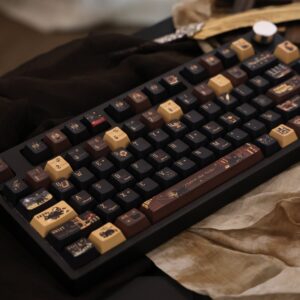
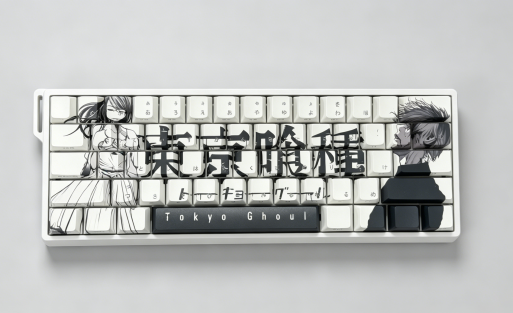
- If you’re experimenting with aesthetics too, swapping keycaps is the easiest “sound + look” upgrade.
Desk mat + typing angle
- A desk mat changes resonance more than people expect.
- It also improves the feel of an “ergonomic keyboard” setup because your wrists and forearms aren’t fighting a slippery desk.
Foam / dampening (if your model supports it)
- Some boards include internal dampening; others can be modded.
- If you open the case, go slowly and avoid stressing cables.
Key Takeaway: “Creamy” sound is mostly about eliminating rattle and hollow resonance—stabilizers + keycaps + desk surface are your first levers.
Useful shortcuts and remaps (without breaking your muscle memory)
- Remap Caps Lock to something useful (Push-to-talk, Ctrl, or a macro)
- Create a media layer (volume, play/pause) on Fn
- Set app-specific shortcuts for your most-used tools
Cleaning and maintenance guide
- how to clean keyboard
- how to clean a keyboard
- how to clean keyboard keys
How to remove keyboard keys (keycaps) safely
- Power off the keyboard and unplug it (or turn it off).
- Use a keycap puller (wire-style is gentler).
- Pull straight up—no twisting.
- For large keys (spacebar, Enter, Shift), go slowly because stabilizers can snag.
How to clean a keyboard (quick-clean vs deep-clean)
Quick clean (5–10 minutes)
- Unplug/power off.
- Turn it upside down and tap gently.
- Use compressed air in short bursts.
- Wipe keycaps and case with a microfiber cloth.
Deep clean (30–90 minutes)
- Remove keycaps.
- Clean the base:
- air + soft brush
- microfiber cloth for the top surface
- Wash keycaps in warm (not hot) soapy water.
- Dry keycaps fully before reinstalling.
Warning: Never pour liquid into the keyboard or soak the keyboard base. Electronics and switches don’t forgive moisture.
Maintenance habits that keep your keyboard feeling new
- Keep snacks away from the keyboard (crumbs are the final boss).
- Do a quick-clean monthly.
- Deep-clean every few months if you game daily.
- If a key starts sticking, clean first before assuming the switch is failing.
Why AULA keyboards are among the best gaming keyboards
What to look for in a great gaming keyboard
- Connection reliability (wired, 2.4G, Bluetooth—whichever you’ll actually use)
- Layout fit (do you need a numpad? do you want a smaller footprint?)
- Switch feel (tactile vs linear vs clicky)
- Customization ceiling (keycaps, software, hot-swap support)
- Comfort over long sessions (angle, wrist support, and overall ergonomics)
Where AULA fits
- gamer-friendly features (lighting, multi-device support)
- compact layouts that still keep the essentials
- customization options that get you close to a custom keyboard feel without requiring a full build
Conclusion: set it up once, enjoy it every day
- Pair it correctly (and know your Bluetooth slot shortcut)
- Learn what Fn is doing on your layout
- Set lighting once so it matches your setup
- Fix language/layout in the OS so typing feels normal
- Clean it safely so it stays crisp

Add comment
You must be logged in to post a comment.