How to Use AULA Software: Complete Setup Guide for Gaming Keyboards
Modern gaming keyboards offer far more than simple typing. Features like RGB lighting customization, macro support, Rapid Trigger, adjustable actuation, and low latency optimization have become increasingly important for gamers across Europe.
To unlock these advanced features, AULA keyboards use dedicated keyboard software that allows users to fully customize their gaming experience.
In this complete guide, we explain how to use AULA software, where to download the latest AULA driver, how to customize RGB lighting, how to configure macros, and how to optimize your keyboard for FPS gaming.
Whether you own a Hall Effect keyboard, wireless gaming keyboard, or mechanical keyboard from AULA, this guide will help you get the best performance from your setup.
What Is AULA Software?
AULA software is the official driver and configuration tool designed for AULA gaming keyboards.
The software allows users to customize:
- RGB lighting effects
- Key remapping
- Macro recording
- Polling rate
- Rapid Trigger settings
- Adjustable actuation
- Gaming profiles
- Performance optimization
Many modern AULA keyboards also support Hall Effect switch customization, which is becoming increasingly popular among FPS gamers.
Where to Download AULA Software
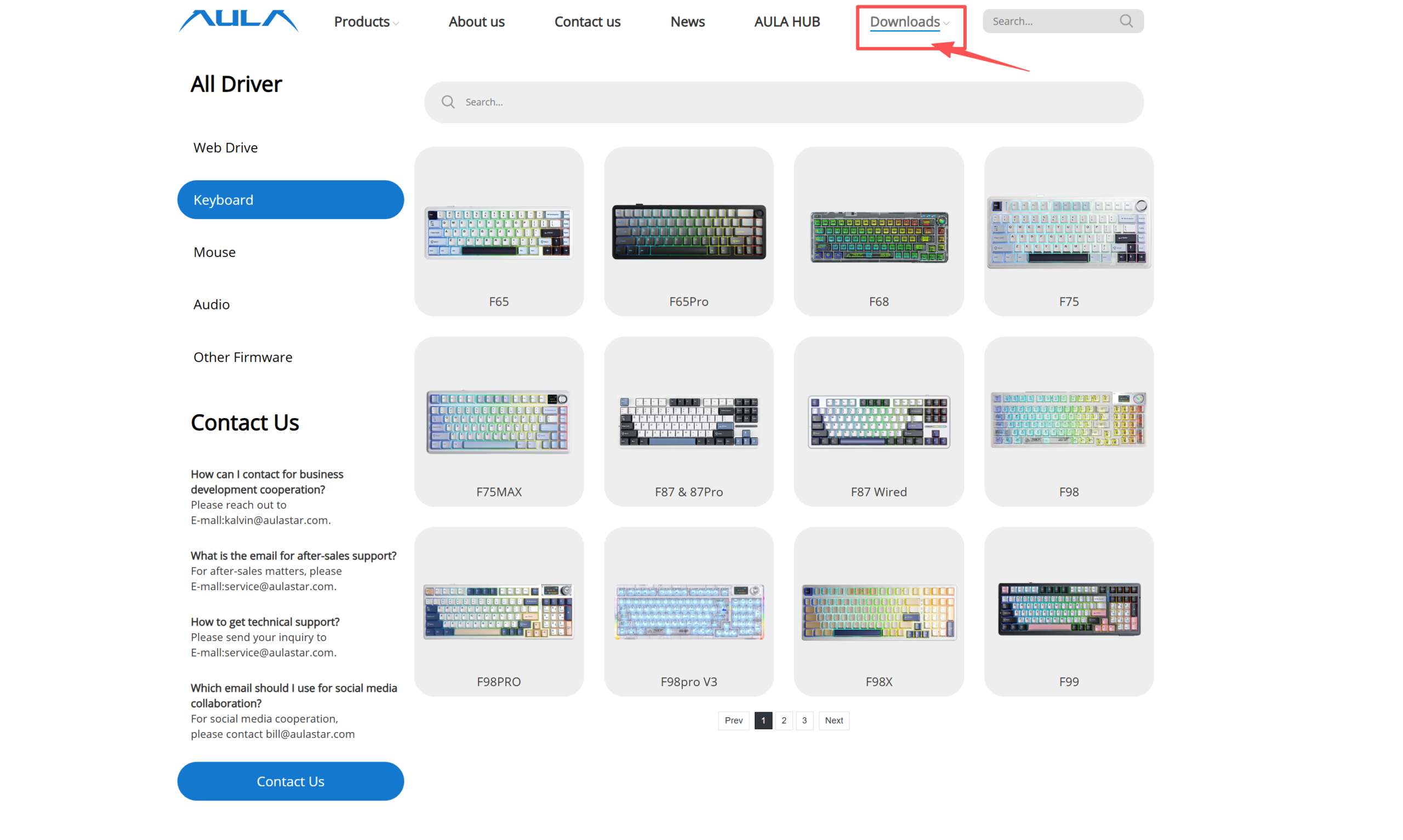
To ensure stability and compatibility, always download the latest version of AULA software directly from the official AULA website.
Official Website:
https://www.aulastar.com/keyboard/
Recommended Software Pages::
- Driver Download Center
- Product Support Page
- Firmware Update Section
How to Install AULA Software
Important Tips:
- Download software only from official sources
- Match the software version to your keyboard model
- Install the latest firmware updates for best performance
European users especially value stable firmware and long-term software support when choosing gaming peripherals.
How to Install AULA Software
Installing AULA keyboard software is straightforward.
Step 1: Download the Driver
Visit the official AULA support page and select your keyboard model.
Examples include:
Step 2: Extract the Software Package
Most AULA drivers are delivered as compressed ZIP files.
Extract the files before installation.
Step 3: Run the Installer
Open the installer and follow the setup instructions.
Administrator permission may be required on Windows systems.
Step 4: Restart Your PC
After installation, restart your computer to ensure all keyboard drivers initialize correctly.
Step 5: Connect Your Keyboard
Use wired mode during initial setup for maximum stability.
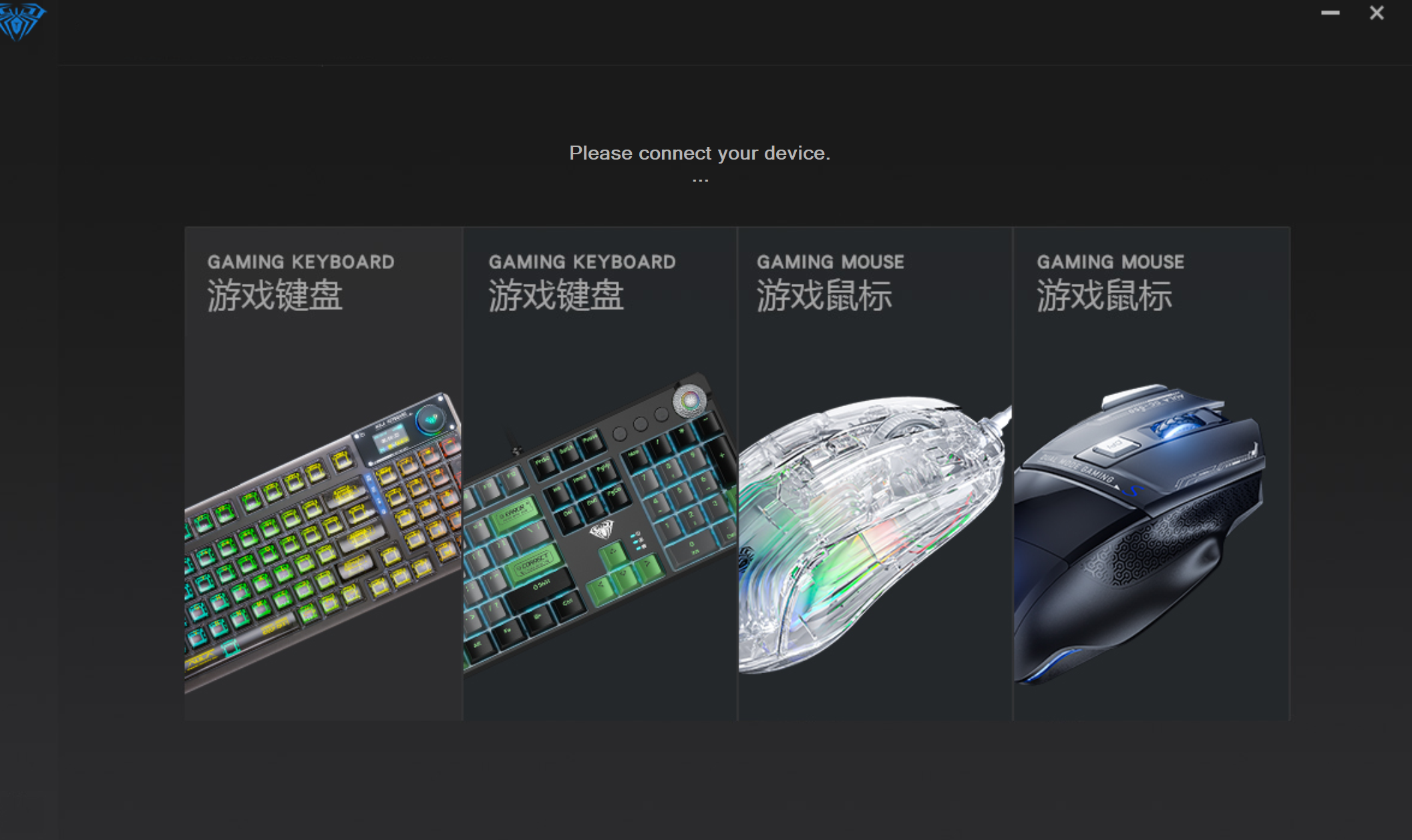
Once connected, the software should automatically detect your keyboard.
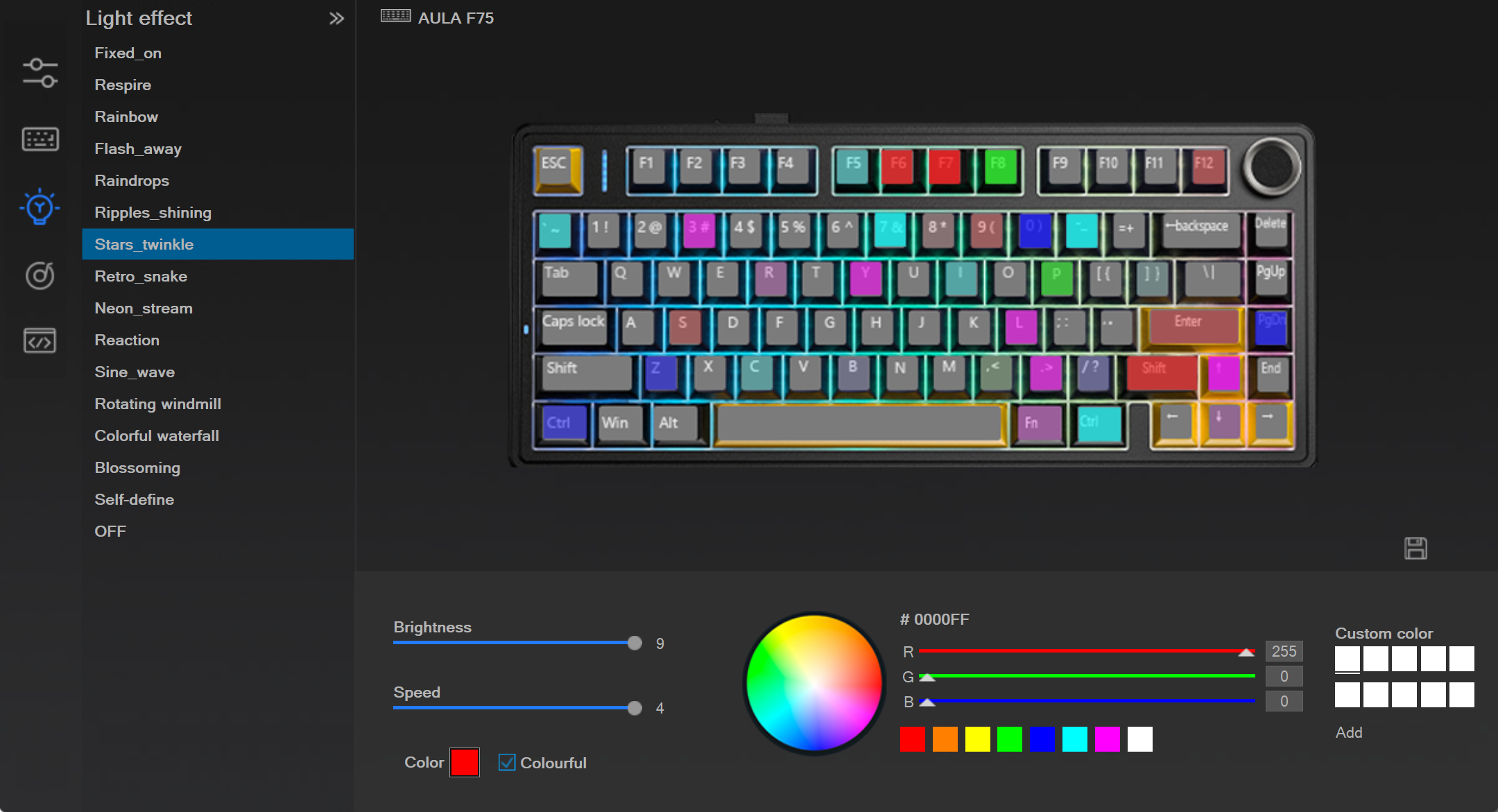
How to Customize RGB Lighting in AULA Software
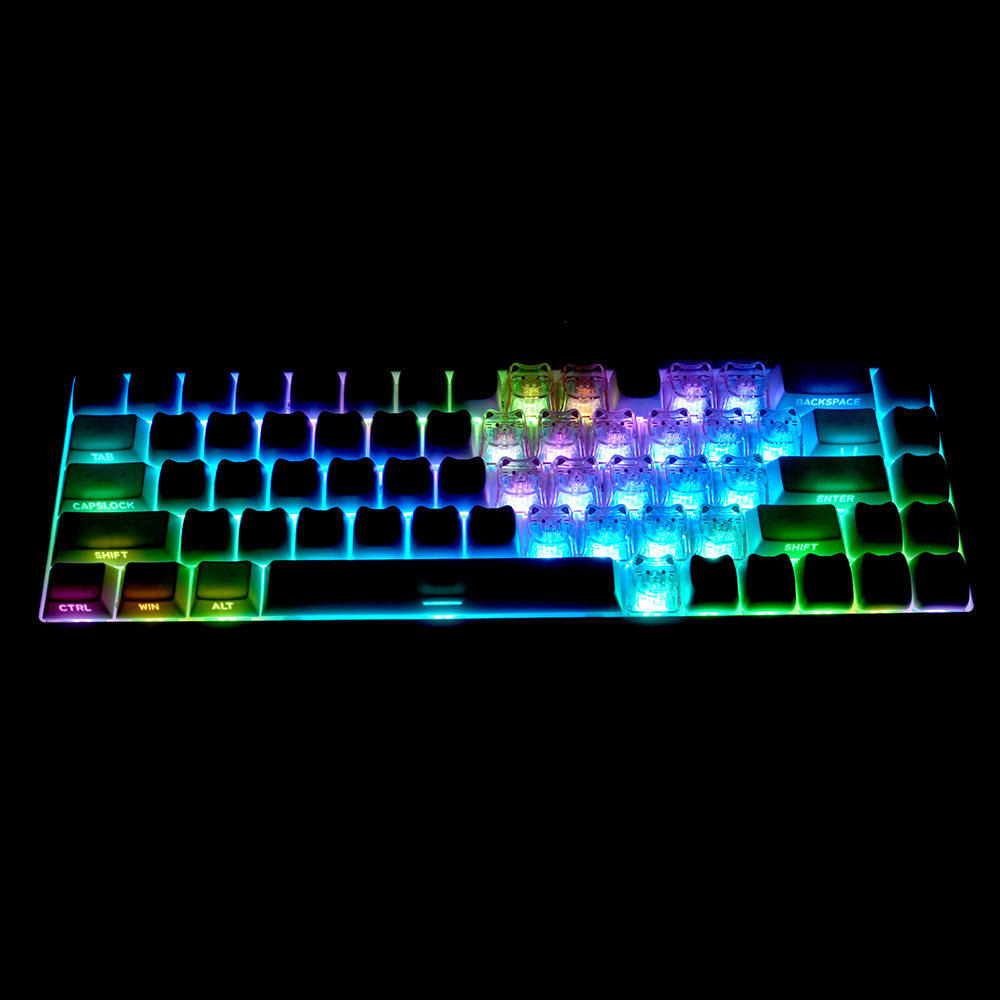
RGB lighting customization is one of the most popular features among gaming keyboard users in Europe.
AULA software allows users to control:
- Lighting brightness
- RGB speed
- Static colors
- Dynamic effects
- Per-key RGB
- Music synchronization
- Gaming lighting modes
Popular RGB effects include:
- Rainbow wave
- Reactive typing
- Breathing effect
- Ripple lighting
- Static gaming colors
For FPS games, many players prefer minimal RGB profiles to reduce distractions during competitive gameplay.
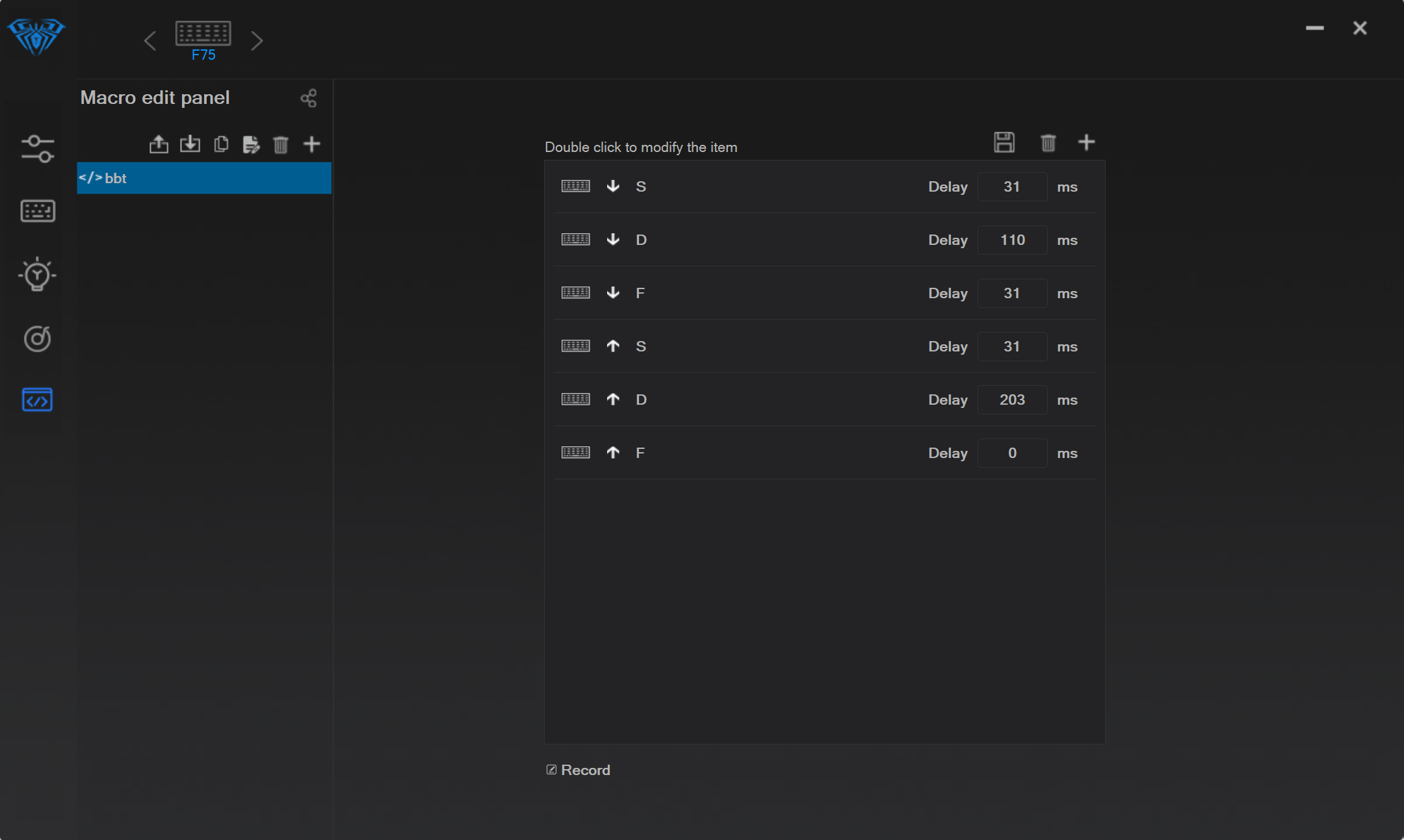
How to Create Macros in AULA Software
Macros allow users to automate complex key combinations using a single key press.
This feature is especially useful for:
- MMO games
- Productivity shortcuts
- Streaming controls
- Editing workflows
How to Record a Macro
- Open the Macro section
- Create a new macro profile
- Record key inputs
- Save the sequence
- Assign the macro to a specific key
Many European gamers use macros carefully because some competitive games restrict advanced automation.
Always verify tournament rules before using macros in esports competitions.
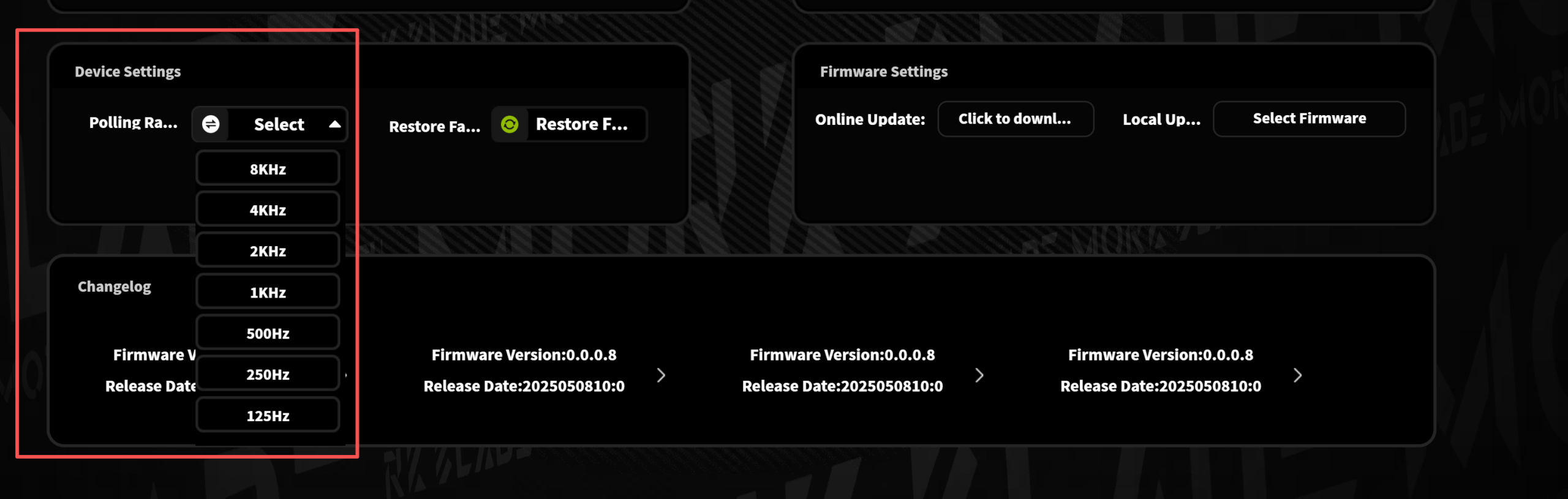
How to Adjust Polling Rate
Polling rate affects how frequently the keyboard communicates with the PC.
Most AULA gaming keyboards support:
- 125Hz
- 500Hz
- 1000Hz
- 8000Hz polling rate
Higher polling rates reduce input latency and improve responsiveness during FPS gaming.
For competitive games like Valorant and CS2, many players prefer:
- 1000Hz or higher
- low latency gaming keyboard settings
How to Enable Rapid Trigger
Rapid Trigger is one of the biggest advantages of Hall Effect keyboards.
This feature dynamically changes the key reset point based on finger movement, resulting in:
- Faster strafing
- Better counter movement
- Improved reaction speed
- Lower perceived latency
Many competitive FPS players now prefer Rapid Trigger keyboards for games like:
- Valorant
- Counter-Strike 2
- Apex Legends
How to Configure Rapid Trigger
- Open the Hall Effect settings menu
- Select Rapid Trigger mode
- Adjust sensitivity levels
- Test movement response
- Save the gaming profile
How to Adjust Actuation Point
Hall Effect keyboards allow users to customize actuation distance.
This means keys can activate with shorter or longer travel depending on personal preference.
For FPS gaming:
- Lower actuation = faster response
For typing:
- Higher actuation = fewer accidental presses
Many European gamers prefer balanced settings that work for both gaming and daily use.
Common actuation settings:
- 0.1mm for esports
- 0.5mm balanced gaming
- 1.0mm+ for typing comfort
Common AULA Software Problems and Fixes
Sometimes users may encounter software-related issues.
Below are common fixes.
AULA Software Not Detecting Keyboard
Possible solutions:
- Reconnect USB cable
- Use wired mode
- Restart software
- Update firmware
- Try another USB port
RGB Lighting Not Working
Possible solutions:
- Reset lighting profile
- Reinstall software
- Update drivers
- Check onboard memory settings
Software Crashes or Freezes
Possible solutions:
- Run as administrator
- Install latest version
- Close conflicting RGB software
Best Settings for FPS Gaming
For competitive FPS gaming, many players optimize their AULA keyboard settings for faster response and lower latency.
Recommended settings:
- 1000Hz or 8000Hz polling rate
- Rapid Trigger enabled
- Low actuation distance
- Minimal debounce delay
- Wired connection for tournaments
Popular games include:
- Valorant
- CS2
- Overwatch 2
- Apex Legends
These settings help create a faster and more responsive gaming experience.
Why Hall Effect Keyboards Are Becoming Popular
Hall Effect gaming keyboards are becoming increasingly popular across Europe because they provide:
- Faster response time
- Adjustable actuation
- Rapid Trigger support
- Better movement precision
- Lower latency
Many gamers now consider Hall Effect technology one of the biggest advancements in gaming keyboards in recent years.
This is especially true for competitive FPS gaming.
FAQ
How do I download AULA software?
You can download the latest AULA keyboard software from the official AULA website support or driver download section.
Is AULA software available for all keyboards?
Most modern AULA gaming keyboards support official software, although features may vary depending on the model.
What is Rapid Trigger in AULA software?
Rapid Trigger is a Hall Effect keyboard feature that dynamically changes key reset points for faster movement and improved responsiveness in FPS games.
Can I customize RGB lighting with AULA software?
Yes. AULA software supports RGB customization including lighting effects, brightness, colors, and per-key lighting options.
What polling rate should I use for gaming?
Most gamers use 1000Hz polling rate or higher for competitive gaming to reduce input latency.
Are Hall Effect keyboards better for Valorant?
Many Valorant players prefer Hall Effect keyboards because they offer lower latency, Rapid Trigger support, and adjustable actuation for faster movement control.

Add comment
You must be logged in to post a comment.