
Aula Keyboard Customization
You get creative freedom with Aula Keyboard Customization. Change your keyboard’s color scheme, switch types, font, and layout in minutes. Users say Aula’s design process is simple and fun. The software feels easy to use, so you can build a keyboard that matches your style and boosts your performance.
Keyboard Color Scheme
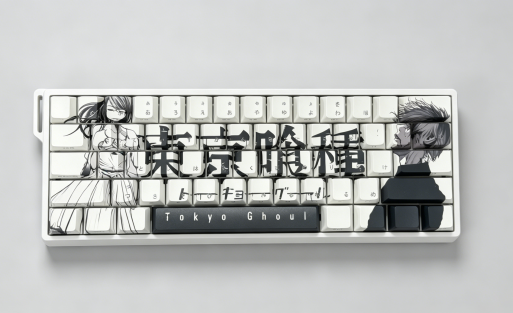
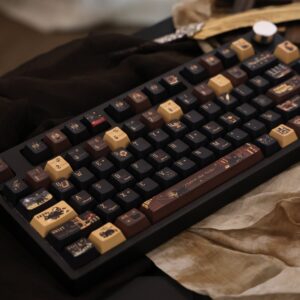
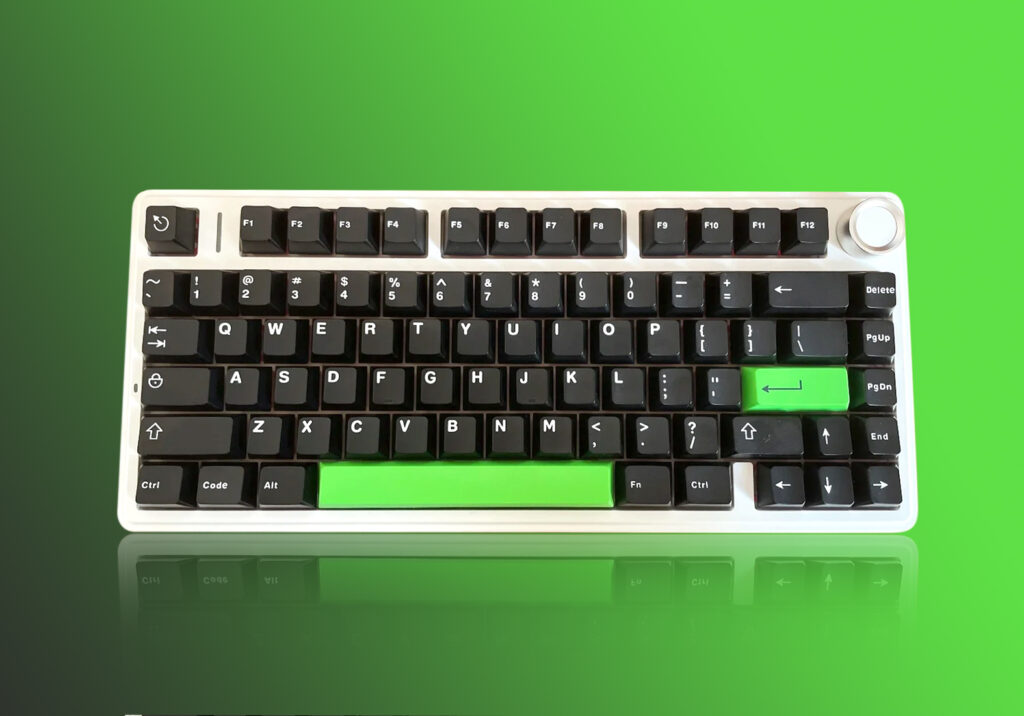
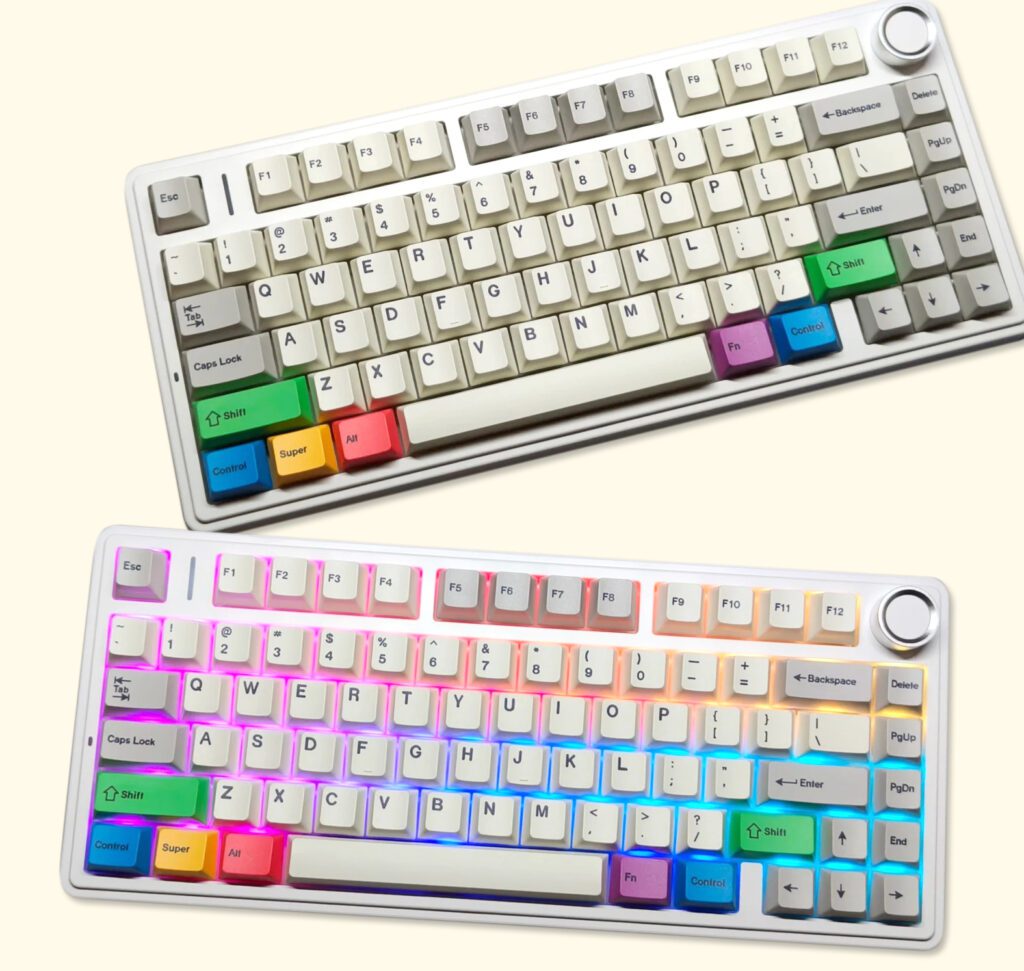
You can make your keyboard stand out with a custom color scheme. Aula keyboards let you pick colors for different key zones, like the function row, WASD, or even the spacebar. Want to show off your favorite team or match your setup? You can do that in just a few clicks. Some models even let you upload images or artwork, so your keyboard feels truly personal.
Switches
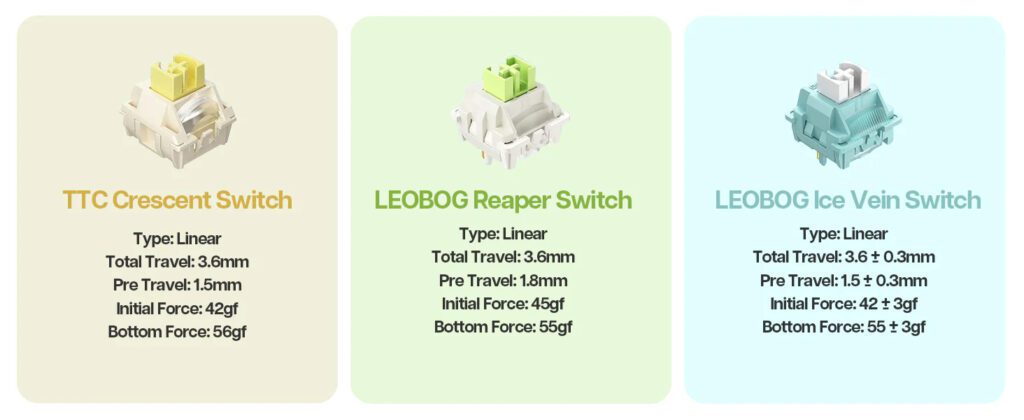
Switch customization is a game-changer. With Aula’s hot-swappable designs, like on the F75 you can swap out switches without any soldering. This means you get to try tactile, linear, or silent switches whenever you want. If a switch ever stops working, just pop it out and replace it. This feature boosts the lifespan and versatility of your keyboard, making maintenance easy and fun.
Tip: Hot-swappable sockets help you experiment with different switch feels and sounds, so you never get bored with your typing experience.
Font & Layout
Aula Keyboard Customization gives you options for both font and layout. You can choose from global layouts like QWERTY, AZERTY, or even Dvorak. Some models, that saves space but keeps most keys. You can also pick front-printed or side-printed legends and adjust font color for a look that matches your style.
Layout options help you type faster and more comfortably.
Font choices let you add a personal touch to every key.
Add Your Heading Text Here
Aula keycaps use double-shot PBT or transparent PC materials, so they last longer and look great. The legends stay clear thanks to advanced printing methods. You get a smooth feel that’s perfect for gaming or typing. The color combos and crisp symbols give your keyboard a stylish, modern vibe.
Aula Keyboard Customization Steps
Choose your preferred 75% or 60% layout
Before you start, you need to pick the right layout for your needs. Aula Keyboard Customization gives you two popular choices: 75% and 60%. Each layout offers a different balance of portability and functionality.
Layout Type | Numeric Keypad | Function Row | Navigation Keys | Portability | Functionality |
|---|---|---|---|---|---|
No | No | No | Maximizes portability | Minimal keys, focused on essentials | |
No | Yes | Partial | Compact, still portable | Retains function row and navigation keys |
If you want the smallest keyboard for travel or a clean desk, go with 60%. If you need arrow keys and a function row for gaming or productivity, 75% is your best bet. Both layouts save space and look modern, so you can’t go wrong.
Follow the step-by-step instructions on the right to design your keyboard
Now it’s time to get hands-on. Aula Keyboard Customization makes the process easy, but you’ll want to prepare your workspace first. Here’s how you can swap keycaps or switches and use the software to make your keyboard truly yours.
Choose Layout
Select the 75% layout (Aula F75) or the 60% layout (WIN60) according to your needs.Design Keycaps and Keyboard Color Scheme
Use the official design tool to pick keycap colors, font styles, and keyboard case colors. You can also upload images or customize font colors.Choose Switches
Select switches based on your personal preferences.Confirm Your Design and Place the Order
After finalizing your design, confirm your order. Your custom keyboard will be produced within 7-10 business days.Receive Your Personalized Keyboard and Enjoy
Get your uniquely customized keyboard and enjoy a one-of-a-kind typing and gaming experience!
Finalize and Confirm Your Unique Design
You’re almost done! Before completing your order, please take a moment to review your choices. Make sure every keycap matches your design perfectly.
Aula’s keyboard customization tool helps you create a keyboard that is truly your own. Whether you prefer a minimalist style or a vibrant personalized masterpiece, you can bring it to life step by step.
Tips & Maintenance
Care
Taking care of your keyboard keeps it looking sharp and working smoothly. You want to clean it regularly to stop dust and crumbs from building up. Use a soft cloth and a mild cleaning solution for the surface. Stay away from harsh chemicals—they can damage the finish. If you have magnetic switches, you can remove them for easy cleaning and upgrades. PBT double-shot keycaps resist oil and wear, so your keys stay fresh even after months of use. Try to dust your keyboard two or three times a week, and do a deeper clean every couple of months. Sound-absorbing foam and gasket-mounted structures help protect the inside and keep things quiet. Lubricate your switches for a smooth feel and longer life. With these habits, your keyboard can last for years.
Troubleshooting
Sometimes, things don’t work as planned after customizing. Maybe your RGB lights don’t show up, or a key stops working. Here’s what you can do:
Restart your computer to clear minor glitches.
Try plugging your keyboard into a different USB port.
Clean around the keys with a soft brush or compressed air.
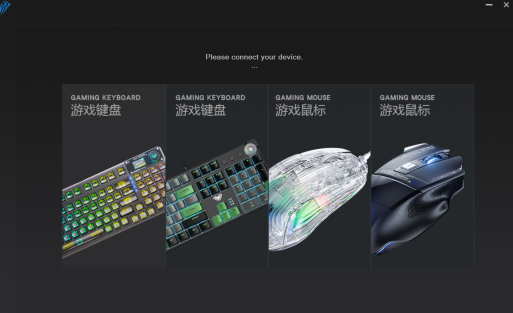
Update or reinstall the Aula software from the official site.
Check for software conflicts—close other programs that might interfere.
Test keys like Fn and arrows to make sure they respond.
Watch tutorial videos for step-by-step help.
Driver Settings
Managing your drivers keeps your keyboard running at its best. If you run into software issues, update the Aula software to the latest version. You can reset settings in the software by choosing “Restore Defaults.” If problems stick around, uninstall the software, restart your computer, and reinstall it. Make sure your operating system matches the software requirements. For tough problems, reach out to Aula support for expert help.
Aula Keyboard Customization lets you create a keyboard that looks and feels just right. You get vibrant RGB lighting, smooth switches, and flexible layouts.
Enjoy a quiet, comfortable typing experience with sound-dampening layers.
Switch between wired or wireless modes for convenience.
Personalizing your keyboard feels rewarding and fun!

Add comment
You must be logged in to post a comment.