How to make a custom keyboard
You can make a custom keyboard by starting with a model designed for personalization. The Aula F75, a compact 75% mechanical keyboard, stands out for its consistent popularity and user satisfaction. Begin by setting your budget and choosing your preferred size and style. Explore keycap options for both looks and performance.
This guide will take you step by step from choosing colors → selecting switches → arranging layouts → designing keycaps → to showcasing the final product, helping you build your very own personalized Aula F75.
Product link (start customizing directly):
👉 Custom Aula F75 Mechanical Keyboard
Explore Inspiration from Other Creators
If you’re looking for ideas, many keyboard enthusiasts and bloggers share their design and build processes online. You can watch detailed videos or read step-by-step guides showing:
How they choose layouts, switches, and keycap combinations
Creative color schemes and artisan keycap setups
Assembly tips, stabilizer tuning, and RGB lighting effects
Final showcases and desk setups
https://vm.tiktok.com/ZNdwvKTr8/
https://vm.tiktok.com/ZGdaSL8YA/
Following these creators can spark inspiration and help you visualize your own unique Aula F75 design before starting your customization.
Preparing for Your Build
1. Choose Your Keyboard Color: Set the Style and Mood of Your F75
Color is the most intuitive way to express personality in a customized keyboard. Different colors can influence the overall style of your desk and even your mood while typing.
The Aula F75 supports a variety of case and keycap color schemes:
White: Calm and steady, perfect for studying or working
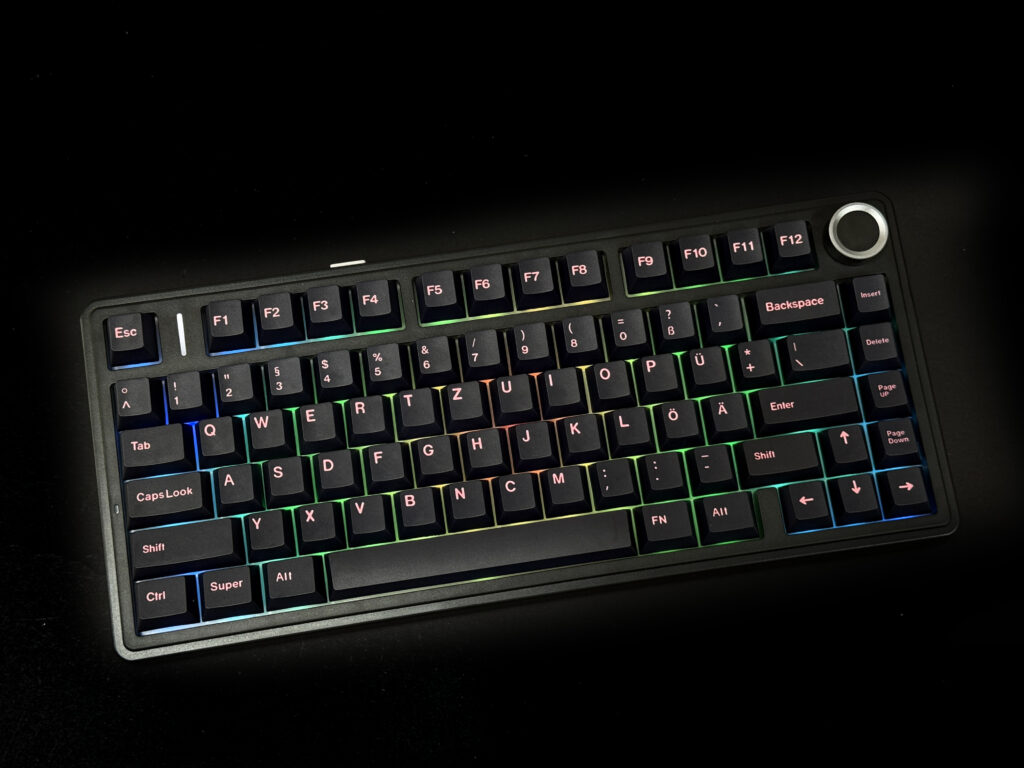
Black: Minimalist, clean, and more professional
2. Choose Your Keyboard Switch: Determine Feel and Sound
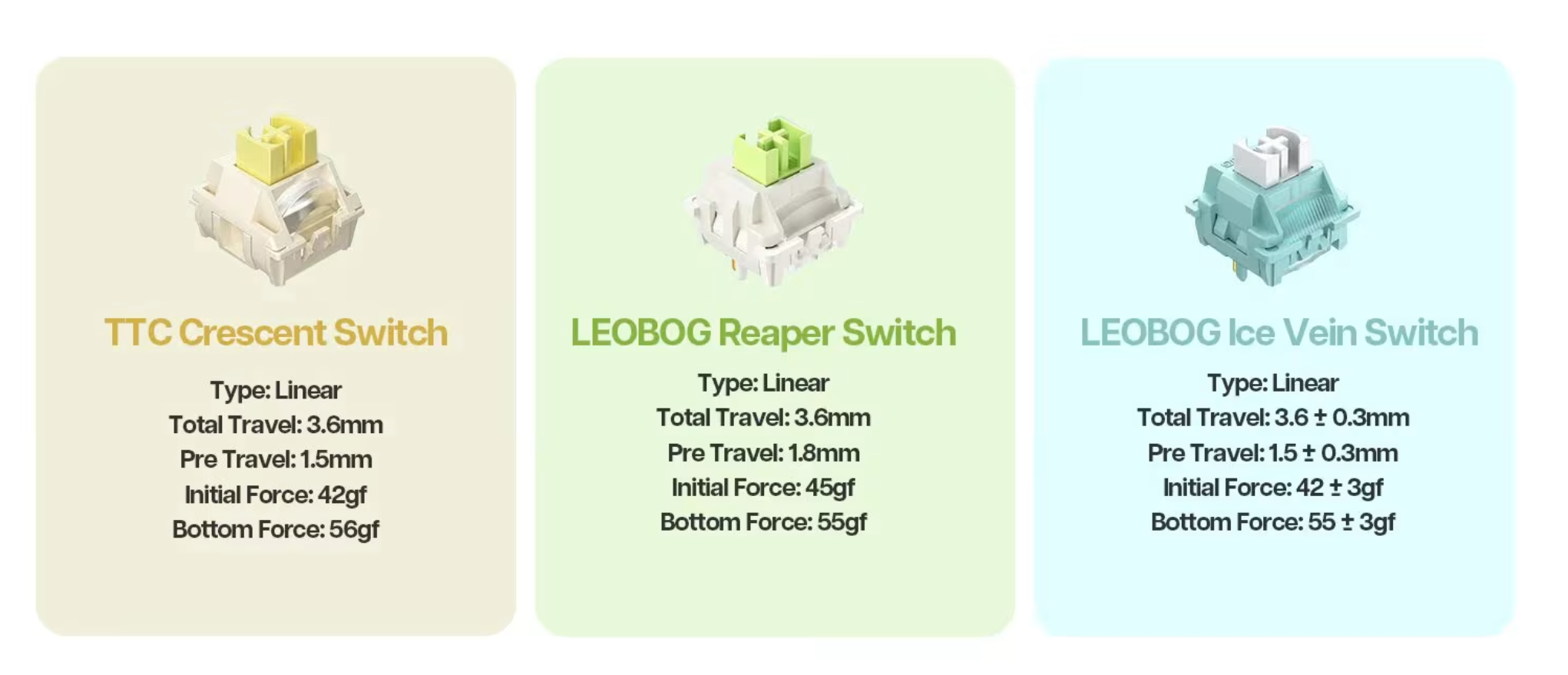
The Aula F75 features a hot-swappable design for all keys, allowing you to change switches anytime without soldering—perfect for beginners to experiment with different types.
| Switch Type | Feel | Sound Characteristics | Suitable For |
|---|---|---|---|
| Reaper (Linear) | Smooth, no tactile bump | Quiet | Gamers, night-time use |
| lce Vein (Tactile) | Slight tactile bump | Moderate | Typists who want feedback |
| Crescent (Clicky) | Clear tactile bump with click sound | Loudest | Players who enjoy crisp sounds (not suitable for offices) |
If you’re customizing your keyboard for the first time, here’s a simple guide:
Work/Office: Linear (Reaper) or light tactile (lce Vein Switch)
Gaming: Fast linear switches (Reaper)
Love sound: Tactile (lce Vein Switch) or clicky (Crescent)
Thanks to the F75’s hot-swappable design, you can remove old switches → insert new ones and try all different feels until you find your favorite combination.
3. Choose Your Keyboard Layout
The Aula F75 uses a compact 75% layout, retaining arrow keys and function keys, making it ideal for daily use and office work.
Common layout options include:
QWERTY (Standard Layout): The default layout for almost everyone
You can also use other layouts, such as QWERTZ, depending on your preference.
4. Design Your Custom Keycaps: Create a Unique Look
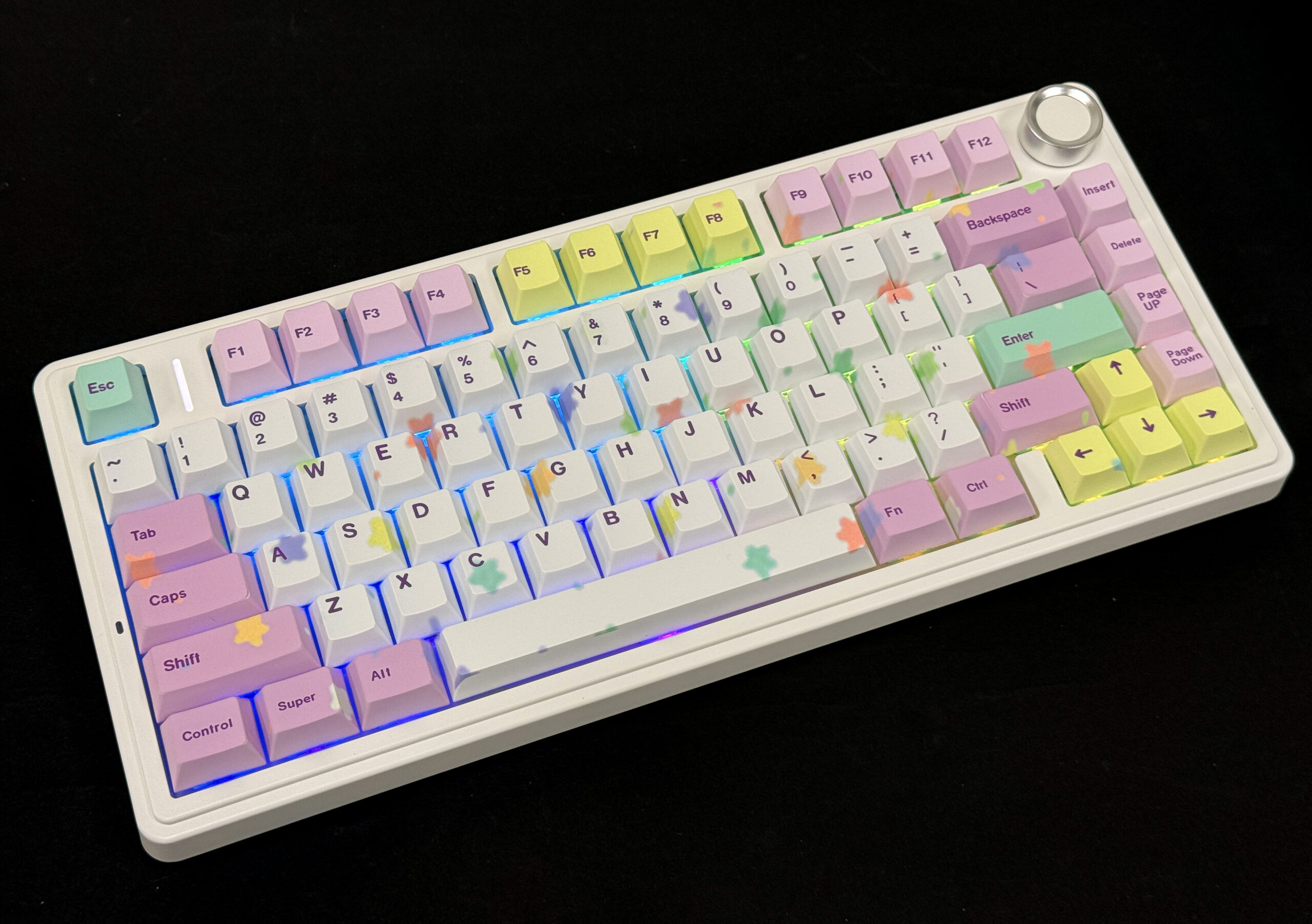
Keycaps are the most visible part of a custom keyboard and the best way to express personality. The Aula F75 comes with high-quality PBT keycaps, which are durable, resistant to shine, and offer a comfortable typing feel.
Choose keycap material:
| Material | Characteristics | Recommended For |
|---|---|---|
| PBT | Durable, oil-resistant, dry and smooth feel | Highly recommended as the first choice |
When designing keycaps, you can choose:
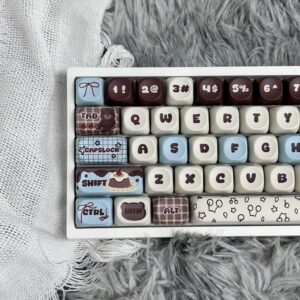
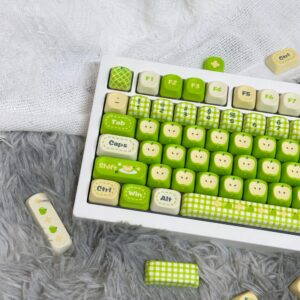
Primary and secondary colors (e.g., Black + Gold, Blue + White, Red + Gray)
Special key styles (ESC, Spacebar, Enter)
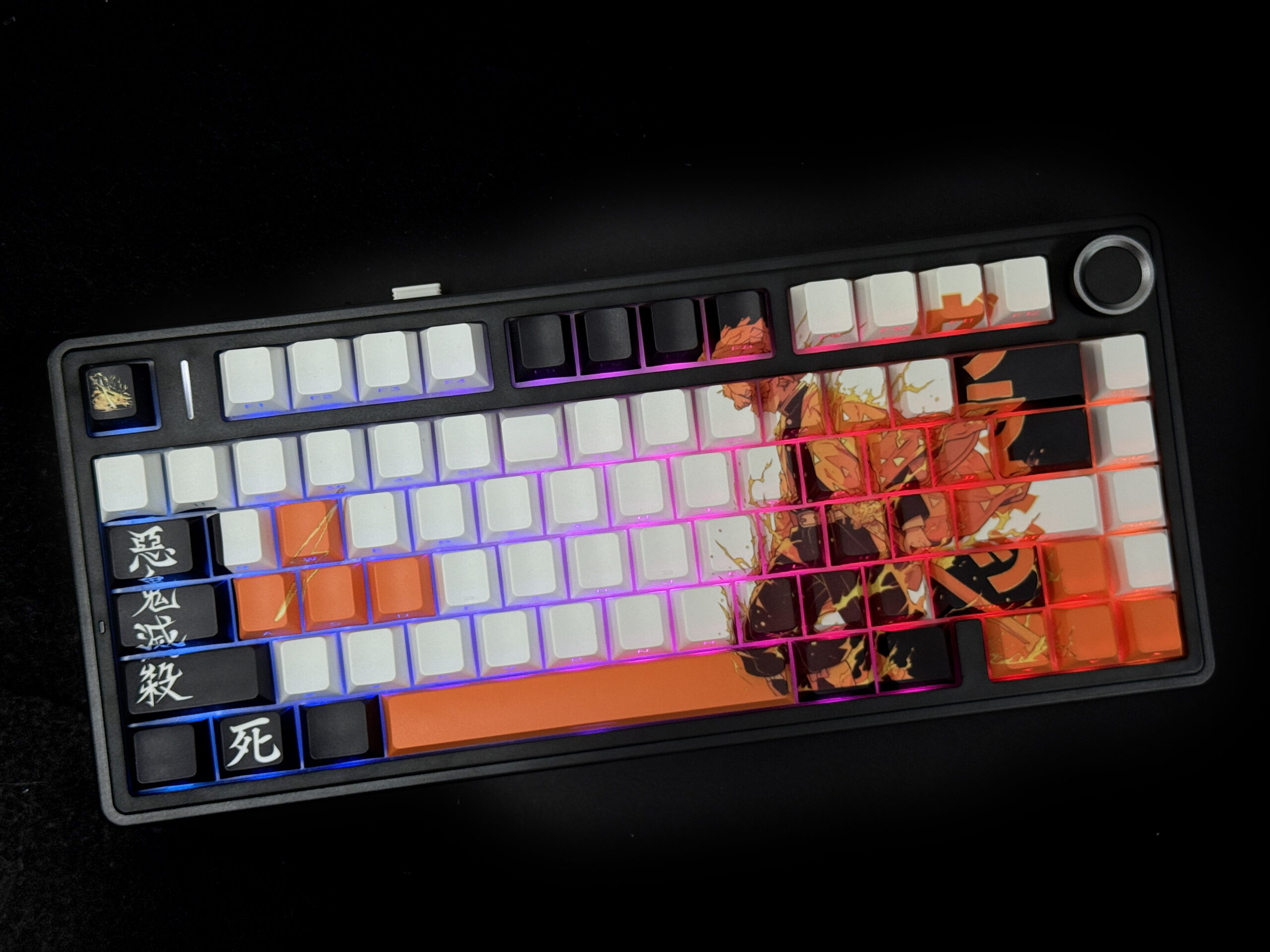
Side-printed keycaps to match RGB lighting
Gaming-themed keycaps (WASD, Fn, Shift)
Custom font styles
If you check Aula’s official customization examples, you’ll notice many users choose:
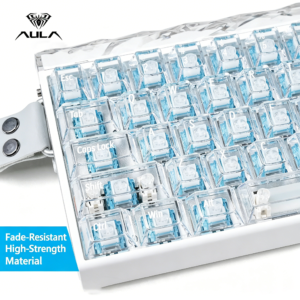
Translucent keycaps
Color-themed sets
Personalized spacebars or large special keys
This helps create a high-recognition, personalized keyboard.
5. Showcase Your Final Result
Once completed, you can evaluate your keyboard from the following aspects:
| Evaluation | Description |
|---|---|
| Color scheme | Does it match your intended desk style? |
| Keycap matching | Does it coordinate with RGB lighting and case colors? |
| Feel & sound | Are the switches comfortable? Do you need to swap any? |
| Typing experience | Are the larger keys stable? Any unusual noise? |
| Functionality | Are all custom key assignments properly set? |
With PBT keycaps, stable tuning, RGB lighting, and solid construction, the Aula F75 not only delivers an excellent typing experience but also becomes the centerpiece of your desk.
FAQ
How do I start customizing my Aula F75?
First, choose the case color and switch type based on your use case. Then select the layout and keycap style, and finally assemble your keyboard step by step.Does the Aula F75 require soldering?
No. It supports hot-swappable switches, so you can replace switches anytime without a soldering iron.Can all keycaps fit on the Aula F75?
Most standard mechanical keyboard keycap sets are compatible. The F75 features precise key positioning, ensuring excellent compatibility.

Add comment
You must be logged in to post a comment.