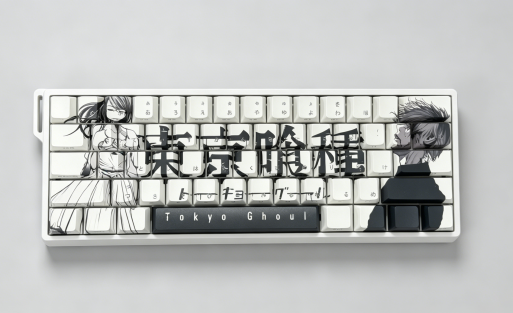
Picture your Aula F75 with custom keycaps—suddenly, your keyboard feels fresh and unique. The F75’s sturdy design gives you the perfect base for expressing your style, whether you game or work. Swapping keycaps takes just minutes. Aula makes it easy, supporting you every step of the way.
Key Takeaways
- Custom keycaps let you personalize your Aula F75 keyboard with colors and designs that match your style and mood, making your setup unique and fun.
- Installing custom keycaps is easy and quick with simple tools; just remove old caps carefully and press new ones in place for an instant fresh look.
Personal Style
You want your setup to stand out, right? Custom keycaps let you show off your personality every time you sit down at your Aula F75. Maybe you love bold colors, or maybe you prefer a sleek, minimalist look. You can pick keycaps that match your favorite game, your favorite color, or even your mood. With so many designs out there, you can always find something that feels like you.
- Tip: Try mixing and matching different sets for a look that’s truly one-of-a-kind!
Typing Experience
Custom keycaps do more than just look good. They can actually change how your keyboard feels. The Aula F75 uses mechanical switches, so you already get that satisfying click or smooth press. When you add custom keycaps, you can choose shapes and textures that fit your fingers perfectly. Some keycaps feel soft and grippy, while others feel smooth and fast. You might even type faster or make fewer mistakes because your fingers know exactly where to land.
Unique Setup
Your Aula F75 has a strong, premium build. Custom keycaps take that solid base and make it even better. When you swap out the standard caps for something special, your keyboard becomes a centerpiece on your desk. Friends and coworkers will notice. Your setup will feel more personal and more fun to use every day. Custom keycaps turn your F75 into something that’s truly yours.
Choosing Keycaps
Compatibility Made Easy
Before buying new keycaps, it’s important to check compatibility—especially with unique layouts like the Aula F75. While many third-party keycap sets claim universal fit, mismatched key sizes or missing keys can lead to frustration.
But when you customize your keycaps directly through AULA, there’s no guesswork.
You get a perfectly matched keyboard and keycap set in one go—no need to shop around separately.
We offer 1:1 precision-matched sets made specifically for your AULA F75, so you can enjoy perfect fit, hassle-free installation, and full layout coverage—every time.
Here’s a quick look at the technical specs to ensure your confidence:
| Specification Aspect | Details |
|---|---|
| Switch PCB Socket | Hot-swappable, compatible with 5-pin and 3-pin Cherry MX style switches |
| Switch Stem Type | Cherry MX compatible (LEOBOG Star Vector linear switches) |
| LED Orientation | South-facing LEDs for optimal backlighting and shine-through compatibility |
| Backlighting Clarity | Enhanced with south-facing LED-compatible keycaps |
| Keycap Legends | Stock keycaps do not have shine-through legends |
| Keyboard Layout | Compact 75% layout |
| Key Spacing | 19.0 mm (0.748 inches), standard spacing for most custom keycap sets |
Pro Tip: If you want to preserve RGB shine-through, choose keycaps made for south-facing LEDs with translucent legends.
Materials & Profiles
Keycap material and shape can change how your keyboard feels and looks. You’ll see two main materials: PBT and ABS. PBT keycaps feel textured and resist shine from your fingers. They last longer and keep their color. ABS keycaps feel smooth and light, but they can get shiny over time. Many people prefer PBT for its durability, but ABS can offer brighter colors and a lighter touch.
Keycap profile means the shape and height of each key. Some popular profiles include:
OEM: Standard height, slightly curved. Feels familiar and works well for most people.
Cherry: Lower than OEM, with a gentle curve. Many users find this profile comfortable for long typing sessions.
SA: Tall and rounded. These keycaps stand out and give a retro vibe.
DSA: Flat and uniform. Great if you like a smooth, even surface.
Try different profiles if you can. You might find one that feels just right for your hands.
Design & Color
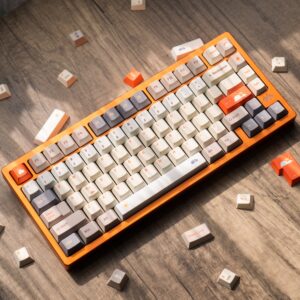
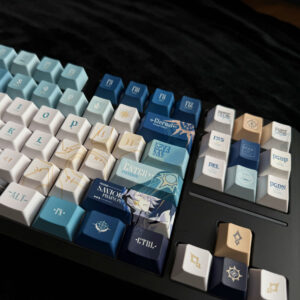
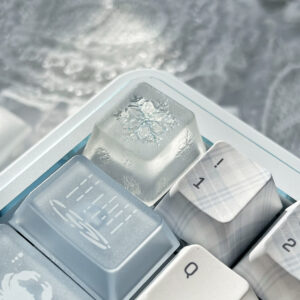
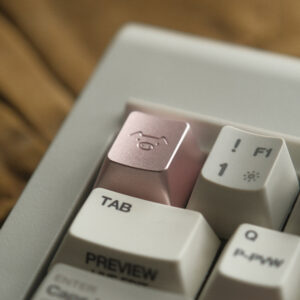
This is where you get to have fun. Custom Keycaps come in every color and design you can imagine. You can match your keyboard to your favorite game, your room’s theme, or even your favorite season. Some people like bold, bright colors that pop. Others go for soft pastels or classic black and white. You can even find keycaps with unique legends, artwork, or special textures.
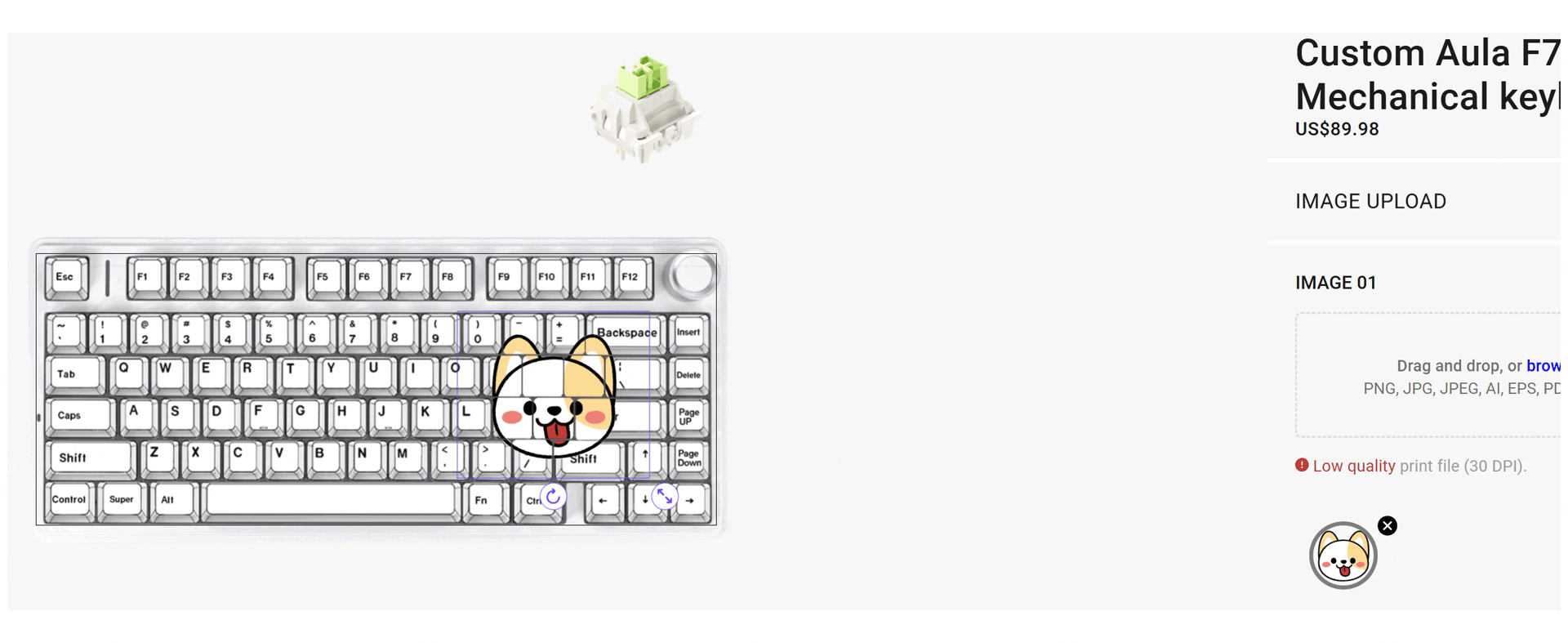
The trend toward unique keycap designs keeps growing. Many users love previewing their keycap sets before buying, making sure the colors and legends fit their style. High-quality PBT dye sublimation keycaps get a lot of praise for their look and feel. People want their keyboards to stand out, and custom designs help you do just that.
Installation Guide
Tools Needed
Before you start, gather a few simple tools. You will need a keycap puller. Most Custom Keycaps sets include one, but you can also buy them online. If you do not have a keycap puller, a small flat tool or even a sturdy paperclip can work in a pinch. Keep a soft cloth nearby to protect your desk and your keyboard. Make sure your hands are clean to avoid smudges.
- Tip: Unplug your Aula F75 before you begin. This keeps your keyboard safe and prevents accidental key presses.
Step-by-Step
Place your keyboard on a flat surface.
Use the keycap puller to gently grip a keycap. Pull straight up to remove it. Do not twist or force it.
Remove all the keycaps you want to replace. Set them aside in a safe spot.
Take your new Custom Keycaps and line them up with the switch stems.
Press each keycap down until it clicks into place.
Double-check that all keycaps sit evenly and feel secure.
You can finish the whole process in just a few minutes. Enjoy the new look right away!
Troubleshooting
If a keycap feels loose, press it down again until it fits snugly. If a key does not register, check that the keycap is not blocking the switch. Sometimes, a keycap might not fit perfectly. Try another keycap from your set. If you run into any issues, Aula’s customer support is ready to help you out.
Note: Keep your old keycaps in a safe place. You might want to switch back or try a new style later.
With just a few keycap changes, you can make your AULA F75 truly one of a kind.
Try out a new style, showcase your keyboard online, and enjoy the customization journey.
AULA makes it easy to create a personalized setup—and if you need assistance, our team is here to support you every step of the way.
You can contact us via email:[email protected]
FAQ
Can I use any keycap set on my Aula F75?
You need to choose keycaps that fit Cherry MX style switches and the 75% layout. Most Custom Keycaps designed for mechanical keyboards will work.
Will changing keycaps affect my keyboard’s warranty?
No, swapping keycaps does not void your warranty. Aula encourages you to personalize your F75 with Custom Keycaps.
How do I clean my Custom Keycaps?
Remove the keycaps and wash them gently with warm water and mild soap. Dry them completely before putting them back on your keyboard.

Add comment
You must be logged in to post a comment.