AULA Keyboard: How to Switch Your Keyboard Language
You can switch your keyboard language on the Aula Keyboard by using shortcuts, checking the manual, or changing settings on your computer. Different models like F75, WIN60, F99 Pro, and F108 may need different steps. Try pressing the shortcut keys or look for language options in your operating system.
Aula Keyboard Language Settings
Accessing Settings
You want to switch your keyboard language, but you might not know where to start. Aula Keyboard makes this process simple, no matter which model you use. The F75 x Epomaker, F98Pro, and F99 all have slightly different ways to access language settings.
First, check if your Aula Keyboard has dedicated shortcut keys. Many models let you change the language by pressing a combination like Fn + Space or Fn + Shift. If your keyboard does not respond to these shortcuts, you need to adjust the settings on your computer.
Here’s a quick guide for accessing settings on popular Aula Keyboard models:
| Model | Shortcut | Requires OS Setup | Manual Reference |
|---|---|---|---|
| F75 | Fn + Space | Sometimes | Yes |
| F98Pro | Fn + Shift | Often | Yes |
| F99 | Fn + Space or Fn + Shift | Rarely | Yes |
If you cannot find the shortcut, open your operating system’s keyboard settings. Windows and Mac both let you add or switch languages easily. You can also search for your model’s manual online or join Aula Keyboard communities on Reddit or TikTok for advice.
Aula Keyboard stands out for its ergonomic design. You get comfort during long typing sessions, and the mechanical switches feel responsive. Many users say Aula Keyboard is one of the best mechanical keyboards on the market.
Changing Language
Ready to change your keyboard language? Follow these steps for a smooth experience:
1.Try Keyboard Shortcuts:
Press the shortcut for your model. For example, on the Aula F75 , hold Fn and tap Space. On the F98Pro, use Fn + Shift. Watch for the language indicator on your screen.
2.Use OS Settings:
If shortcuts do not work, open your computer’s language settings.
On Windows:
Go toSettings > Time & Language > Language. Add your preferred language and set it as default.On Mac:
Go toSystem Preferences > Keyboard > Input Sources. Click the plus sign, choose your language, and drag it to the top of the list.
3.Manual Instructions:
Check your Aula Keyboard manual for model-specific steps. Manuals often include diagrams and troubleshooting tips.
4.Online Communities:
Join Aula Keyboard forums or social media groups. Users share shortcuts, custom setups, and solutions for common problems.
Note: Some Aula Keyboard models need you to restart your computer after changing language settings. If you run into issues, double-check your manual or ask for help online.
Switching your keyboard language on Aula Keyboard is easy once you know where to look. You can enjoy a personalized typing experience and take advantage of the keyboard’s ergonomic features.
Shortcuts and Troubleshooting
Keyboard Shortcuts
You want to switch languages fast. Aula F99 and many other models let you do this with simple shortcuts. Try pressing Fn + Space or Fn + Shift on your Aula Keyboard. You might see the language change on your screen right away. If nothing happens, check your manual for the exact shortcut. Some models use different key combinations. You can also look for a language icon on your taskbar or menu bar. This icon shows which language you use now.
If you use your keyboard with both Windows and Mac, shortcuts may work differently. On Windows, the shortcut often changes the input language. On Mac, you might need to set up the shortcut in your system settings first. Always test the shortcut after you set it up.
Common Issues
Sometimes, shortcuts do not work as expected. You might press the keys and see no change. Here are some quick steps you can try:
Check language settings on your device. Make sure the keyboard layout matches your Aula Keyboard.
Adjust your language settings if you see the wrong characters.
Restart your computer after making changes.
Try the shortcut again after checking your settings.
Look for help in online communities like Reddit or TikTok. Many users share tips and fixes there.
If you still have trouble, check your Aula Keyboard manual or visit the support page. Manuals often include diagrams and extra troubleshooting steps.
Switching your keyboard language should feel easy. With the right shortcut and a few quick checks, you can type in any language you want.
Customization Options
Add or Remove Languages
You might want to type in more than one language or remove a language you no longer use. With your Aula Keyboard, you can do this easily through your computer’s settings. Here’s how you can add or remove languages:
Open your device’s language settings.
Select “Add a language” to choose from options like Japanese, Korean, or Arabic.
To remove a language, find it in your list and select “Remove.”
You can also personalize your keyboard beyond just the language. Check out some cool customization features:
| Customization Aspect | Details |
|---|---|
| Language Layouts | Choose layouts for Japanese, Korean, Arabic, and more. |
| Key Switches | Swap out switches for a different typing feel. |
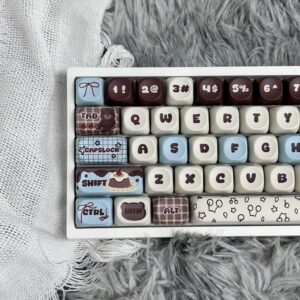
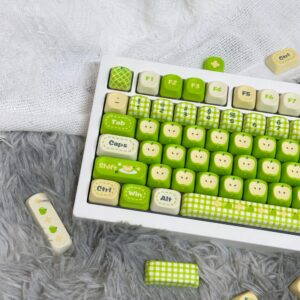
| Keycap Colors and Fonts | Pick unique colors or fonts for your keys. |
| Image Importing | Add images to make your keyboard stand out. |
| Font Placement | Decide if you want the font on the front, side, or not at all. |
| Pricing | All font options come at no extra cost. |
Tip: Try different layouts and styles until you find what feels right. You can always change things back if you want.
Set Default Language
After you add your favorite languages, you probably want to set one as your default. This makes sure your Aula Keyboard always starts with the language you use most. Here’s what you do:
Go to your language settings.
Drag your preferred language to the top of the list or select “Set as default.”
Restart your computer if needed.
Now, every time you start typing, your keyboard will use your chosen language. If you ever want to switch, just repeat these steps. Customizing your Aula Keyboard helps you work and play in the way that suits you best.
You can switch your Aula Keyboard language by using shortcuts, adjusting OS settings, or following your manual. Try each method to see what works for your model.
Tip: If you get stuck, check online communities or your manual for extra help. You’ll find answers and new ideas there!
FAQ
How do I reset my AULA keyboard language to default?
You can open your device’s language settings. Select your main language. Set it as default. Restart your computer if needed.
What if my keyboard shortcut does not work?
Check your manual for the correct shortcut. Try changing the language in your operating system settings. You can also ask for help in online communities.
Can I use multiple languages on my AULA keyboard?
Yes! Add more languages in your device’s settings. Switch between them using shortcuts or the language bar. Enjoy typing in any language you want.

Add comment
You must be logged in to post a comment.