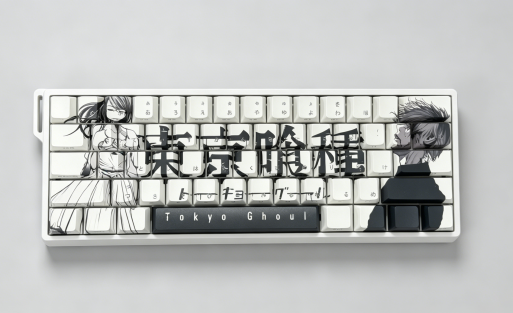
How to change color on Aula F99 keyboard
You can change the color on your Aula F99 keyboard using these shortcuts:
Fn + Right Arrow: switch colors
Fn + 0: cycle light effects
Fn + Shift: toggle modes
Fn + Up/Down Arrow: adjust brightness
Fn + Home: reset lighting
Tip: You don’t need any software. These keys make it quick and easy!
Key Takeaways
Use simple key combinations to change colors on your Aula F99 keyboard. Press Fn + Right Arrow to switch colors easily.
Adjust brightness quickly with Fn + Up Arrow to brighten or Fn + Down Arrow to dim the lights. Find the level that feels best for you.
Reset your keyboard lighting anytime by pressing Fn + Home. This brings back the default settings without needing software.
Aula F99 color change steps
Fn key shortcuts for color and effects
You can easily switch up the look of your Aula F99 keyboard using a few simple key combinations. Here’s how you do it:
Hold down the Fn key.
Tap the Right Arrow key. Each tap cycles through different RGB lighting modes.
Keep tapping until you see a color or effect you like.
- Tip: If you want to try out different lighting effects, press Fn + 0. This shortcut cycles through the available light patterns. You can also use Fn + Shift to toggle between lighting modes. If you ever want to reset your lighting back to default, just press Fn + Home.
You don’t need any extra software. The Aula F99 gives you quick control right from the keyboard.
Adjusting brightness and power bar colors
Sometimes the lights might feel too bright or too dim. You can fix that in seconds:
Fn + Up Arrow: Makes the lights brighter.
Fn + Down Arrow: Lowers the brightness.
Try different levels until you find what feels best for your eyes. If your keyboard has a power bar or extra lighting strip, these shortcuts usually adjust those colors too. The Aula F99 keeps things simple, so you can focus on your work or gaming without distractions.
Keeping RGB lighting on
Want your keyboard to stay lit all the time? The Aula F99 makes it easy. After you pick your favorite color and brightness, the keyboard remembers your settings. You don’t have to set it up every time you turn on your computer.
Here’s a quick look at how the Aula F99 compares to another popular keyboard in its price range:
| Feature | AULA F99 | RK F99 Series |
|---|---|---|
| RGB Customization | Standard RGB | Extensive RGB options |
| LED Orientation | Not specified | South-facing LEDs |
| Preset Lighting Modes | Not mentioned | 16 preset modes |
| Hotkey Functions | Not mentioned | Various hotkey functions |
| Ideal User | Basic users | Gamers and streamers |
The Aula F99 offers straightforward RGB controls. You get a clean look and easy setup, perfect if you want a keyboard that just works.
- Note: If your lights ever turn off or don’t stay on, check your power settings or try resetting with Fn + Home.
Aula RGB troubleshooting and tips
Fixing color change issues
Sometimes, your keyboard lights might not change or respond. You can try a few quick fixes to get your Aula keyboard glowing again:
Check if the keyboard is plugged in all the way.
Try pressing Fn + Home to reset the lighting.
Make sure you are using the right key shortcuts. Double-check that you are holding the Fn key while pressing the other keys.
Test the keyboard on another computer to see if the problem continues.
If your RGB lights still do not work, remember that the Aula F99 does not come with warranty coverage for lighting issues. You will need to try troubleshooting on your own or reach out for help.
No warranty coverage for RGB lighting issues on the Aula F99 keyboard.
Resetting and customizing RGB settings
You can always reset your RGB settings if something looks off. Just press Fn + Home to bring your keyboard back to its default lighting. Want to try new colors or effects? Use the shortcuts you learned earlier to cycle through modes and brightness. Play around until you find a look you love.
If you want to save your favorite setup, just leave the keyboard plugged in. The Aula F99 remembers your last settings, so you do not have to redo them every time. This makes it easy to keep your workspace looking just the way you like.
- Tip: If your keyboard stops responding, unplug it for a few seconds and plug it back in. This simple step often fixes small glitches.
You can change your Aula F99 keyboard colors in just a few steps:
Press Fn + PRTSC for preset modes.
Use Fn + DEL for single-color lighting.
Record custom lighting with Fn + HOME.
Adjust brightness with Fn + Up/Down.
Change effect speed using Fn + Left/Right.
| Feature | Description |
|---|---|
| RGB Lighting Customization | Make your own lighting profiles and patterns. |
| Aesthetic Appeal | Enjoy a bright, stylish look that never feels too much. |
| Functional Benefits | Adjust lights for gaming or typing comfort. |
Try different modes and make your setup unique! If you run into trouble, check the tips above.
FAQ
How do you reset the lighting on your Aula F99 keyboard?
Just press Fn + Home. Your keyboard goes back to its default lighting. You don’t need any software or extra steps.
Can you save custom colors on the Aula Keyboard?
Yes! Pick your favorite color and effect. The keyboard remembers your last settings, even after you unplug it.
Why won’t the RGB lights change on my Aula F99?
Check if you’re holding the Fn key while pressing shortcuts. Try resetting with Fn + Home. If nothing works, unplug and plug in your keyboard.

Add comment
You must be logged in to post a comment.