

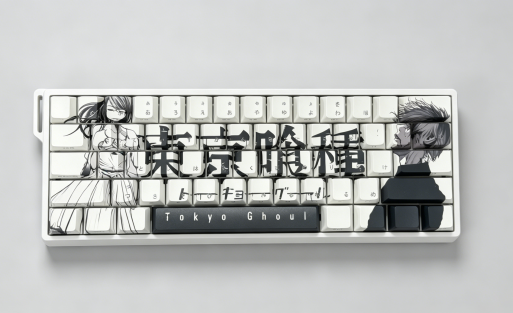
How to Clean a Keyboard (2026 Complete Guide for Mechanical & Gaming Keyboards)
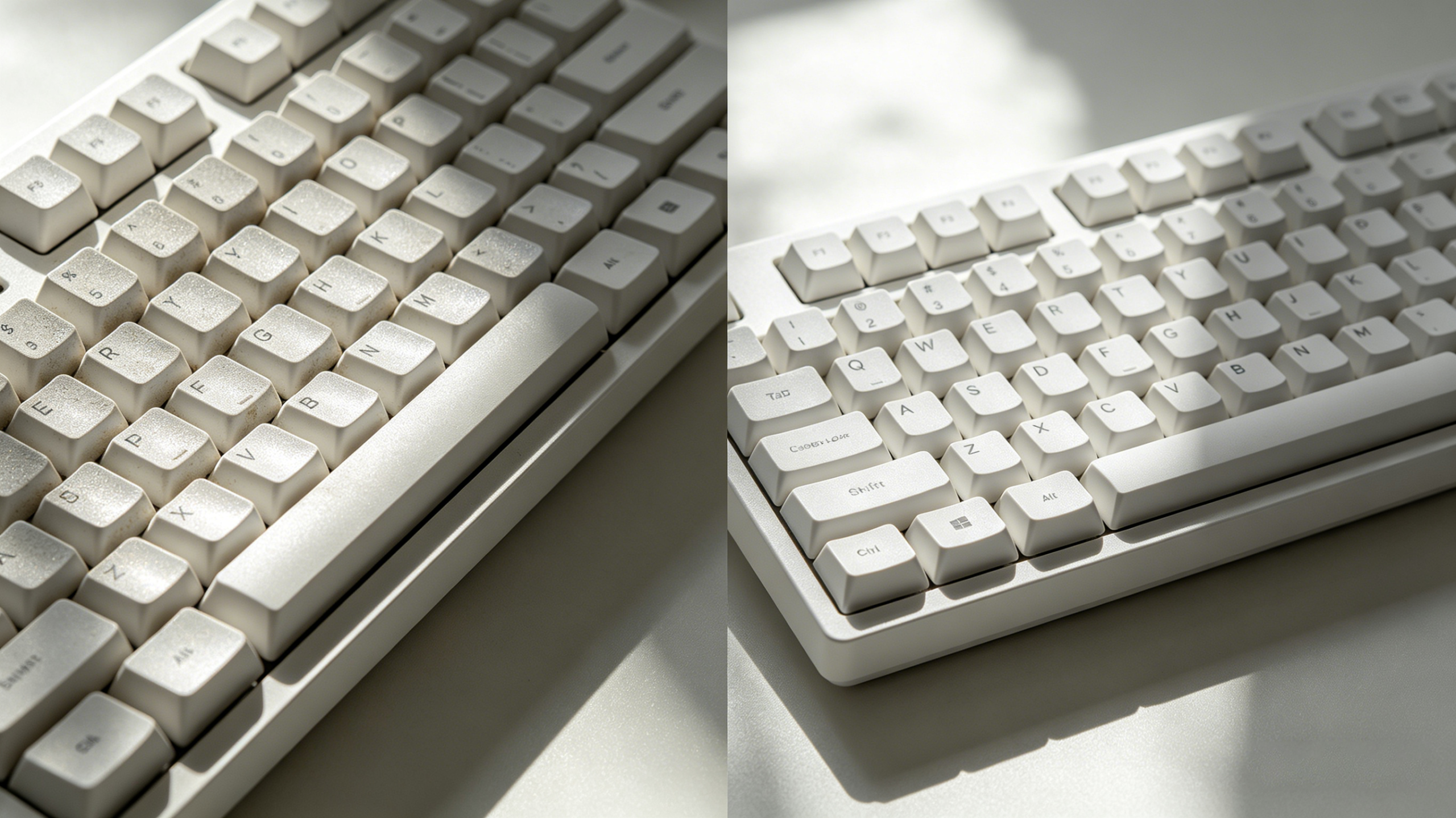
Keeping your keyboard clean is essential—not just for appearance, but for performance, hygiene, and long-term durability. Whether you’re using a laptop, office keyboard, or a high-performance mechanical keyboard like an Aula keyboard, regular maintenance can significantly improve your typing experience.
In this complete guide, you’ll learn how to clean a keyboard step by step, including detailed instructions for mechanical keyboards, gaming keyboards, and modern Hall effect keyboards.
Why Cleaning Your Keyboard Is More Important Than You Think
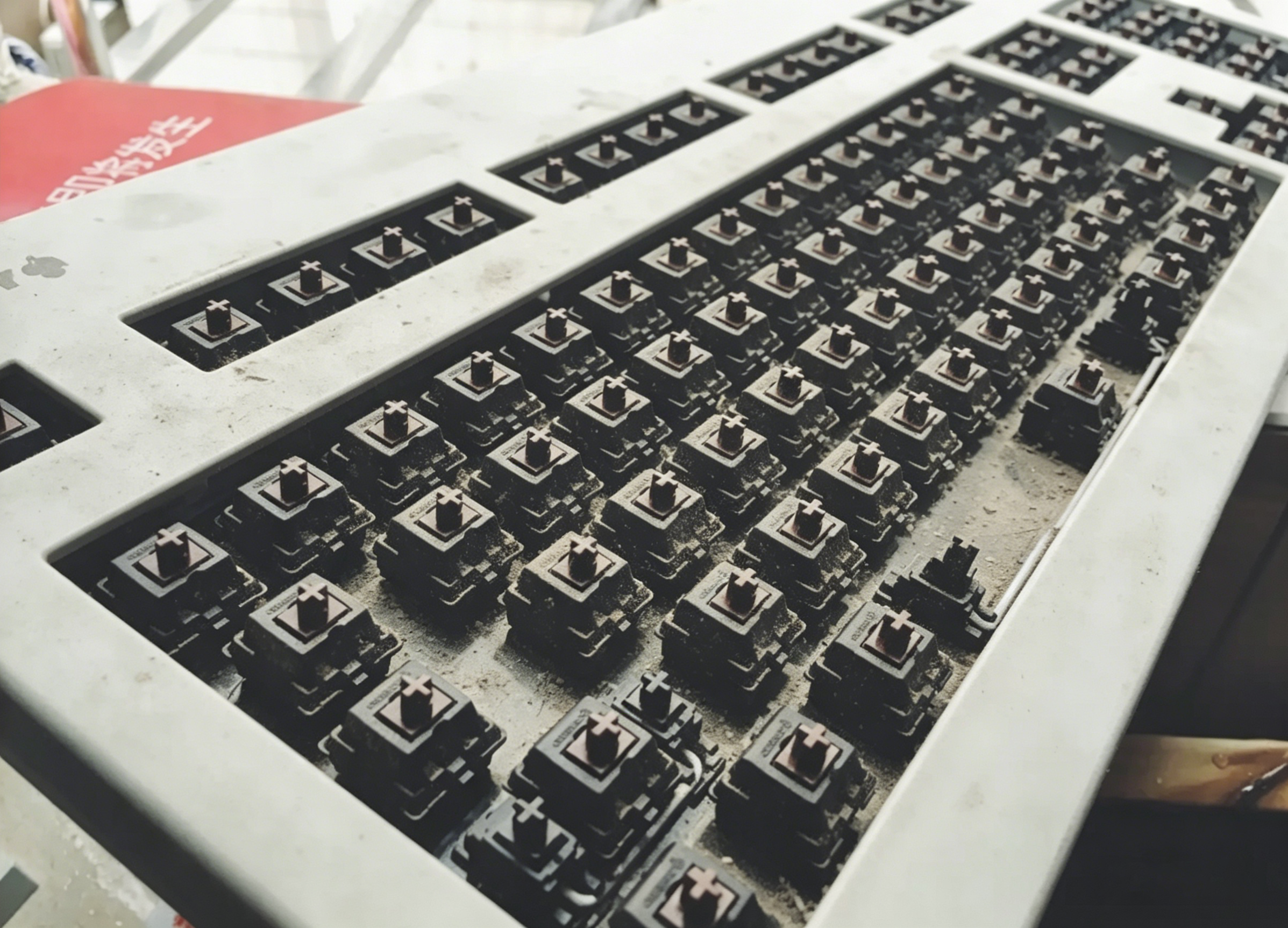
Keyboards are used daily, yet often ignored when it comes to cleaning. Over time, they collect:
- Dust and debris
- Food crumbs
- Skin oils
- Bacteria
This buildup can:
- Reduce typing responsiveness
- Cause keys to feel sticky or inconsistent
- Shorten the lifespan of your keyboard
- Affect overall hygiene
If you own one of the best mechanical keyboards, such as an AULA mechanical keyboard, keeping it clean ensures consistent performance and a better user experience.
Different Types of Keyboards and How to Clean Them
Understanding your keyboard type is the first step in learning how to clean a keyboard effectively.
Mechanical vs Hall Effect Keyboards: Cleaning Differences
Mechanical keyboards and newer Hall effect keyboards are both designed with maintenance in mind.
- Mechanical keyboards use physical switches and removable keycaps
- Hall effect keyboards use magnetic sensors but still allow keycap removal
Both types support:
- Easy keycap removal
- Deep cleaning access
- Long-term durability
This is why they are often considered among the best keyboards for users who value both performance and easy maintenance.
How to Clean a Mechanical Keyboard
Mechanical keyboards are the easiest to clean because of their modular design. You can remove keycaps and clean thoroughly without damaging the switches.
This makes them ideal for users who want both customization and easy maintenance.
How to Clean a Laptop Keyboard
Laptop keyboards require a more careful approach:
- Do not remove keycaps
- Use minimal liquid
- Focus on surface cleaning only
How to Clean a Gaming Keyboard
Gaming keyboards often include RGB lighting and advanced components. Cleaning them carefully ensures both performance and visual quality are preserved.
High-quality models like Aula keyboards are built for durability and easier maintenance.
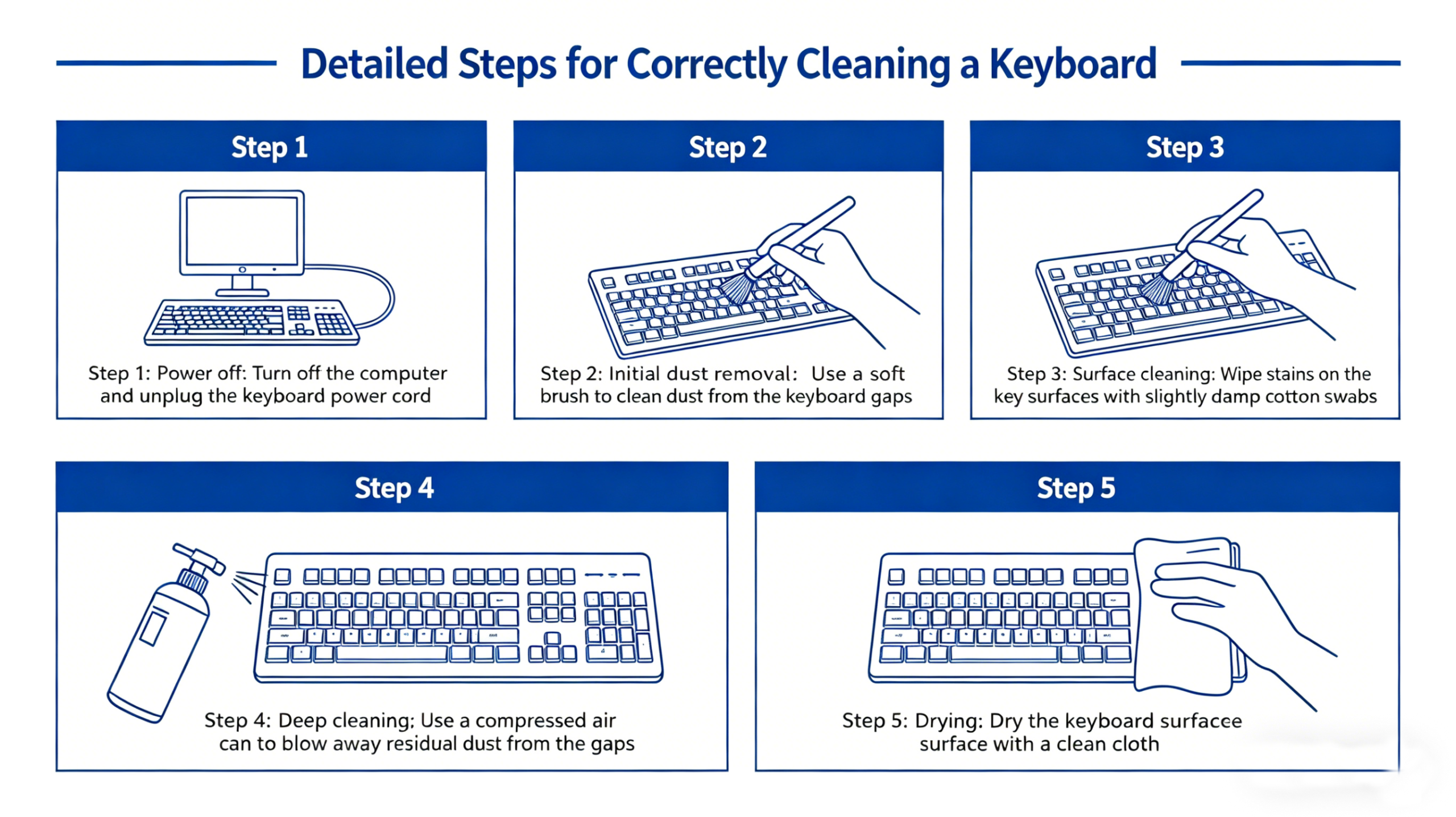
Step-by-Step: How to Clean a Keyboard Properly
Step 1: Turn Off and Disconnect
Before cleaning:
- Unplug your keyboard
- Turn off wireless devices
- Power off laptops
This prevents electrical damage and accidental input.
Step 2: Remove Loose Debris
Turn the keyboard upside down and gently shake it.
For better results:
- Use compressed air
- Blow between keys from multiple angles
Step 3: Remove Keycaps (Mechanical & Hall Effect Keyboards)
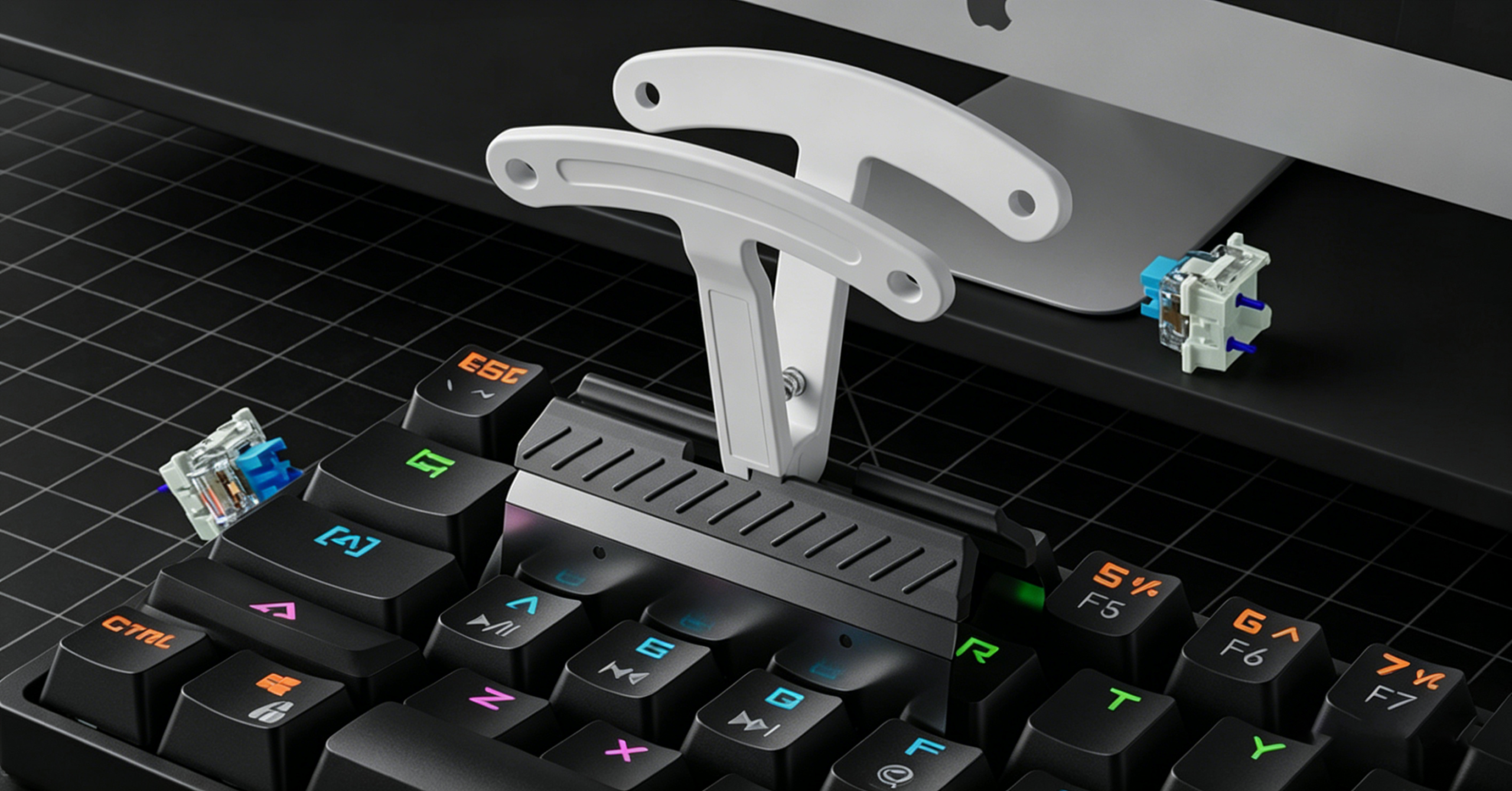
If you’re using a mechanical keyboard or a Hall effect keyboard, remove the keycaps using a keycap puller.
Tips:
- Pull straight up to avoid damage
- Keep keys organized
- Take a photo before removing
Keyboards like AULA mechanical keyboards are designed to support repeated keycap removal, making cleaning much easier.
Step 4: Clean Between Switches
After removing keycaps:
- Use a soft brush to remove dust
- Use compressed air for deeper cleaning
- Lightly apply isopropyl alcohol for sticky areas
⚠️ Avoid:
- Pouring liquid directly
- Excess moisture near internal components
Step 5: Wash the Keycaps
Place keycaps in warm water with mild soap.
Steps:
- Soak for 15–30 minutes
- Gently scrub if needed
- Rinse thoroughly
Drying:
- Air dry for 24 hours
- Ensure completely dry before reinstalling
Step 6: Clean the Keyboard Surface
Use:
- Microfiber cloth
- Slightly damp cloth with isopropyl alcohol
Focus on:
- Edges
- Corners
- Frequently used keys
This is especially useful for maintaining clear keycaps and premium finishes.
Step 7: Reassemble and Test
Once fully dry:
- Reinstall keycaps
- Plug in the keyboard
- Test all keys
Are Hall Effect Keyboards Easy to Clean?
Yes. Modern Hall effect keyboards are designed for easy maintenance.
You can:
- Remove keycaps like mechanical keyboards
- Use compressed air for cleaning
- Avoid liquids near sensors
Despite different internal technology, the cleaning process is almost the same.
Deep Cleaning vs Regular Cleaning
To keep your keyboard in top condition:
Weekly Cleaning
- Surface wipe
- Compressed air
Monthly Deep Cleaning
- Remove keycaps
- Full cleaning process
This routine works best for mechanical keyboards and advanced designs.
Common Mistakes to Avoid
When learning how to clean a keyboard, avoid:
- ❌ Using too much water
- ❌ Not drying keycaps completely
- ❌ Cleaning while powered on
- ❌ Using harsh chemicals
Even the best keyboards can be damaged by improper cleaning.
Pro Tips for Long-Term Keyboard Care
To extend your keyboard’s lifespan:
- Avoid eating near your keyboard
- Wash your hands before use
- Use a desk mat
- Keep your workspace clean
High-quality Aula keyboards are built to last, but proper care makes a big difference.
Related Guide
For a more detailed breakdown, check our full guide on:
👉 How to clean a mechanical keyboard safely
FAQ: How to Clean a Keyboard
How often should I clean my keyboard?
Light cleaning weekly, deep cleaning every 1–2 months.
Can I wash keycaps with water?
Yes, but only removable keycaps. Always dry completely.
How to clean a keyboard without removing keys?
Use compressed air and a soft cloth.
Is alcohol safe for keyboards?
Yes, isopropyl alcohol is safe in small amounts.
What is the safest way to clean a keyboard?
Use minimal liquid, soft tools, and avoid force.
Conclusion
Now you know exactly how to clean a keyboard the right way. Regular maintenance improves performance, extends lifespan, and keeps your setup looking clean.
If you want a keyboard that is easy to maintain and built for long-term use, choosing an AULA mechanical keyboard is a great option. Many users consider them among the best mechanical keyboards thanks to their durability and user-friendly design.
A clean keyboard isn’t just about looks—it’s about performance, comfort, and getting the most out of your setup.

Add comment
You must be logged in to post a comment.