Aula Keyboard light controls
I adjust the lighting on my Aula Keyboard using a few simple key combinations. The most common shortcuts make it easy to control brightness, colors, and effects:
| Key Combination | Function |
|---|---|
| Fn + up arrow | Increases light brightness |
| Fn + down arrow | Decreases light brightness |
| Fn + right arrow | Increases RGB effect speed |
| Fn + \ | Switch light pattern |
| Fn + Tab | Switch light color |
Tip: I often use the knob or M1/M2/M3 buttons for quick access to presets. If I run into issues, I check step-by-step instructions and troubleshooting tips.
Aula Keyboard Light Basics
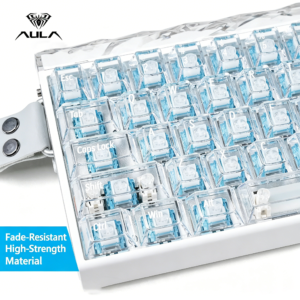
Aula Keyboard lighting stands out for its vibrant RGB backlighting and customizable effects. I have explored several models, and each offers a unique set of features that enhance both aesthetics and usability. When I use my Aula Keyboard, I can choose from a wide color spectrum, including wave, breathing, and reactive effects. These lighting modes not only make my workspace look dynamic but also help me focus during long typing or gaming sessions.
Power and Brightness
Adjusting the brightness on my Aula Keyboard is straightforward. I rely on simple key combinations to control the intensity of the backlight. Here is a quick reference table I use:
| Key Combination | Function |
|---|---|
| FN + Up Arrow | Increase Brightness |
| FN + Down Arrow | Decrease Brightness |
I find that these shortcuts allow me to fine-tune the lighting to match the ambient light in my room. Some models, like the Aula F108 Pro, even let me adjust brightness using a control knob, which adds a tactile element to the experience. I appreciate having multiple brightness levels, as this helps reduce eye strain during late-night work.
Entering Light Effect Mode
Switching between lighting effects on my Aula Keyboard involves a few simple steps. I usually follow this process:
- I press the Fn key along with the Right Arrow key to cycle through the available lighting modes.
- I use Fn with the Up or Down Arrow to adjust the brightness as needed.
- I use Fn with the Left or Right Arrow to change the speed of the lighting effects.
On some models, such as the Aula F75, the method for switching RGB modes may differ slightly. For example, I might need to rotate a knob until the indicator light turns on, then press the button labeled “Light effect/volume” to cycle through effects. If I want to create a custom lighting mode, I hold the “M” button for three seconds, make my adjustments, and press “M” again to confirm.
Note: Each Aula Keyboard model may offer unique lighting effects and customization options. I always check my model’s manual for specific instructions.
To help you compare the unique lighting controls across popular models, I created this table:
| Model | Unique Lighting Control | Difference |
|---|---|---|
| AULA F99 Pro | Advanced RGB lighting control, customizable lighting modes, dynamic effects, adjustable RGB light bars | Offers multiple lighting modes and customization options, enhancing user experience |
| AULA F75 | Specific lighting capabilities not detailed in results | Lacks the advanced features of the F99 Pro, making it less appealing to lighting enthusiasts |
I enjoy experimenting with different lighting modes and customizing the effects to match my mood or the game I am playing. The ability to synchronize RGB lighting with system audio on some models adds another layer of immersion to my setup.
Changing Lighting Effects
Cycling RGB Modes
I often want to change the mood of my workspace or gaming setup. Cycling through the RGB modes on my Aula Keyboard helps me achieve the perfect look. I follow these steps to switch between lighting patterns:
- I press and hold the
Fnkey. - I tap the
Right Arrowkey. Each tap reveals a new RGB lighting mode. - I continue cycling until I find a pattern that matches my preference.
Some models also let me use the Fn + 0 combination or the dedicated light effect/volume button to switch effects. I experiment with these shortcuts to discover all available modes. This process allows me to quickly adjust the lighting without interrupting my workflow.
Some models, like the Aula F108, offer even more control. The F108 lets me adjust brightness, speed, and color patterns using simple key combinations or the multifunction knob. I find this especially useful when I want to fine-tune the lighting for a specific game or work session.
Tip: I recommend trying each mode at least once. Some effects look better in low light, while others stand out during the day.
Customizing Effects
Customizing the lighting effects on my Aula Keyboard gives me full control over my setup. I can adjust not only the effect itself but also the color, brightness, and speed. Here is a table that summarizes the main customization options I use:
| Customization Option | Description |
|---|---|
| Effect | Change lighting effects or turn off the lighting. |
| Colour | Change the lighting color within selected effects. |
| Brightness | Adjust the lighting brightness. |
| Speed | Modify the speed of the lighting effects. |
On some Aula Keyboard models, I use the knob for even more precise adjustments. The knob features a dual mode switching design. When I long-press the knob for three seconds, it toggles between multimedia mode (with the lights off) and light effect mode (with the lights on). I rotate the knob up to increase brightness or down to dim the lights. This tactile control makes it easy to fine-tune the lighting without looking away from my screen.
| Functionality | Description |
|---|---|
| Knob Design | Dual mode switching design |
| Operation Mode | Long press for 3 seconds to switch between multimedia and light effect mode |
| Brightness Adjustment | Rotate down to dim; rotate up to brighten |
If I want to keep the lights on permanently, I select a static color mode and set the brightness to my preferred level. I also adjust the speed to slow or stop the animation, which helps when I need a steady backlight for typing or studying.
Note: I always check my keyboard’s manual for model-specific instructions. Some features may vary depending on the version of the Aula Keyboard I use.
Aula Keyboard Preset Modes
Accessing Presets
When I want to quickly switch between lighting setups, I rely on the preset modes built into my keyboard. These presets let me jump from a calm breathing effect to a vibrant wave pattern with just a few taps. On my Aula F75, I access these modes by pressing the Fn key together with the Right Arrow key. Each press cycles through a different RGB pattern, so I can find the one that fits my mood or task.
- I press
Fn + Right Arrowto cycle through available lighting presets. - I keep tapping until I see the effect I want.
Some models, like the Aula F108, offer even more control. The F108 lets me adjust brightness, speed, and color patterns using simple key combinations or the multifunction knob. I find this especially useful when I want to fine-tune the lighting for a specific game or work session.
Here’s a quick comparison of preset lighting modes and customization features:
Tip: I use the M1, M2, and M3 buttons to activate game area lighting. These buttons instantly switch the lighting to highlight keys I use most during gaming.
Saving Settings
After customizing a lighting mode, I want to save it for future use. I usually hold down the “M” button for about three seconds. This puts the keyboard into customization mode. I then adjust the colors, effects, and brightness to my liking. Once I finish, I press the “M” button again to confirm and save my settings.
- Hold “M” for three seconds to enter customization mode.
- Adjust lighting as desired.
- Press “M” again to save and exit.
This process ensures my favorite lighting setup is always just one button away. I appreciate how the Aula Keyboard makes it easy to personalize and recall my preferred effects, whether I am working late or gearing up for a gaming session.
Troubleshooting
Common Issues
When I use my Aula Keyboard, I sometimes encounter lighting problems. The most frequent issues include lights not turning on, lighting modes failing to switch, or effects freezing. I always start by checking the basics before moving to advanced solutions.
Here are the steps I follow when troubleshooting:
- I confirm the keyboard is securely connected to my computer. A loose USB connection often causes lighting failures.
- I press the key combinations for lighting control, such as
Fn + Up ArroworFn + Right Arrow, to see if the lights respond. - I check if the keyboard is in multimedia mode. On some models, the knob switches between multimedia and lighting modes. I long-press the knob for three seconds to toggle modes.
- I inspect the software settings if my keyboard supports companion software. Sometimes, a software update or reset resolves lighting glitches.
Note: If none of these steps work, I unplug the keyboard and reconnect it after a few seconds. This simple reset often restores normal function.
Common Problems and Solutions Table
| Problem | Solution |
|---|---|
| Lights not turning on | Check USB connection, try key combos |
| Modes not switching | Toggle knob mode, reset keyboard |
| Effects frozen | Unplug and reconnect, update software |
If the lighting
remains unresponsive, I perform a full reset. This process restores the default settings and often fixes persistent issues.
How I reset my Aula Keyboard lighting:
- I hold down the
Fnkey and press theEsckey for five seconds. This combination resets the lighting to factory defaults. - I release both keys and wait for the keyboard to restart. The lights should return to their original settings.
- I test the lighting controls again to confirm the reset worked.
Tip: I always save my custom lighting profiles before resetting. A reset erases all personalized settings.
If problems persist after a reset, I consult the user manual or contact Aula support for further assistance. I find that most lighting issues resolve with these troubleshooting steps, allowing me to enjoy the full range of effects on my Aula Keyboard.
I control the lights on my Aula Keyboard by using key combinations, the knob, and preset buttons. I explore different lighting modes and customize effects to match my workspace or gaming needs. I save my favorite settings for quick access. When I encounter issues, I troubleshoot by checking connections and resetting the lighting.
I recommend trying every mode to find the setup that fits your style best.
FAQ
How do I switch between lighting modes on my Aula Keyboard?
I press the Fn key and tap the Right Arrow key to cycle through lighting modes. Each tap changes the effect. I repeat this until I find the mode I want.
Can I save my custom lighting settings?
I hold the M button for three seconds to enter customization mode. After adjusting colors and effects, I press M again to save my settings. My keyboard remembers these preferences.
What should I do if the lights stop working?
I check the USB connection first. If the lights remain off, I reset the keyboard by holding Fn and Esc for five seconds. This usually restores the default lighting.
Is it possible to adjust brightness without using key combinations?
On some models, I use the control knob. I rotate it up to increase brightness or down to dim the lights. This method feels more precise than key shortcuts.
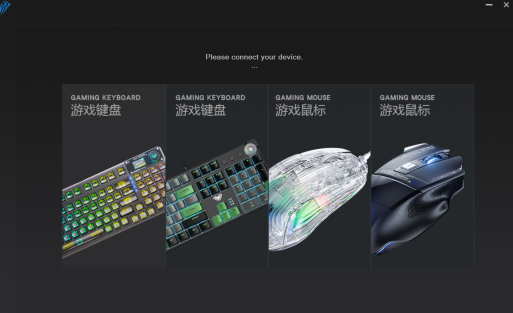
Do Aula Keyboards support software for lighting control?
Some Aula models offer companion software. I install the software from the official website. The software lets me customize effects, colors, and save profiles for quick access.

Add comment
You must be logged in to post a comment.