
How to Reset Aula Keyboard
Ready to get your keyboard working like new? You can Reset Aula Keyboard in just a few easy steps. No matter which model you use, the process feels simple and quick. Aula offers a wide range of keyboards, such as:
- AULA F87 Pro
- AULA F65
- AULA WIN60 HE Series
- AULA HERO 68 HE
- AULA F108
- AULA F81
- AULA WIN68 HE Series
- AULA F75
- AULA F99 PRO
- AULA F75 MAX
- AULA F108 PRO
- AULA F99
You don’t need to be a tech expert. With a little guidance, you’ll have your keyboard back to normal in no time.
Key Takeaways
- Resetting your Aula Keyboard can resolve issues like unresponsive keys and connectivity problems.
- Use the
Fn + Esckey combination for most models to quickly reset settings to factory defaults. - Always check battery status and connections to ensure your keyboard works smoothly after a reset.
- Back up any custom lighting profiles or macros before resetting, as this process may erase them.
- If problems persist after resetting, consider troubleshooting steps like changing USB ports or contacting support.
Reset Aula Keyboard
If your Aula Keyboard starts acting up, you might notice connectivity problems, unresponsive keys, or even strange character outputs. You’re not alone—these are the most common reasons people look for ways to Reset Aula Keyboard. Let’s walk through the exact steps for each model so you can get back to typing smoothly.
Fn + Esc Method
Most Aula Keyboard models use a simple key combination to reset settings. You just need to:
- Make sure your keyboard is plugged in or paired correctly.
- Hold down the
Fnkey. - Press the
Esckey and keep both pressed for about five seconds. - Release both keys.
Tip: You might see the backlight flash or hear a quick beep. That’s your sign the reset worked.
After you Reset Aula Keyboard using this method, the lighting and some settings return to factory defaults. Try this first if you’re not sure which model you have.
Aula F75 Reset
The Aula F75 has its own reset steps. If you want to restore the backlight effect to factory settings, follow these instructions:
- Press
FN+ESCtogether. - Wait for the backlight to switch to the default mode.
Note: The Aula F75 saves previously connected Bluetooth devices. Resetting the backlight won’t delete those connections.
If you use the F75 in 2.4G mode, make sure you switch to the correct mode before you Reset Aula Keyboard. This helps avoid pairing issues later.
Aula F98 Reset
For the Aula F98, you need to use a slightly different approach:
- Hold down the
Fnkey. - Turn the knob (usually located at the top right) while holding
Fn. - Wait for the lights to blink or change color.
This method resets lighting and some custom settings. If you don’t see any visual cues, try unplugging and reconnecting your Keyboard Aula before repeating the steps.
Aula F99 Reset
Resetting the Aula F99 is straightforward. Here’s what you do:
- Hold down the
Fnkey and press theEsckey for five seconds. - Release both keys and wait for the keyboard to restart.
- Test the lighting controls to confirm the reset worked.
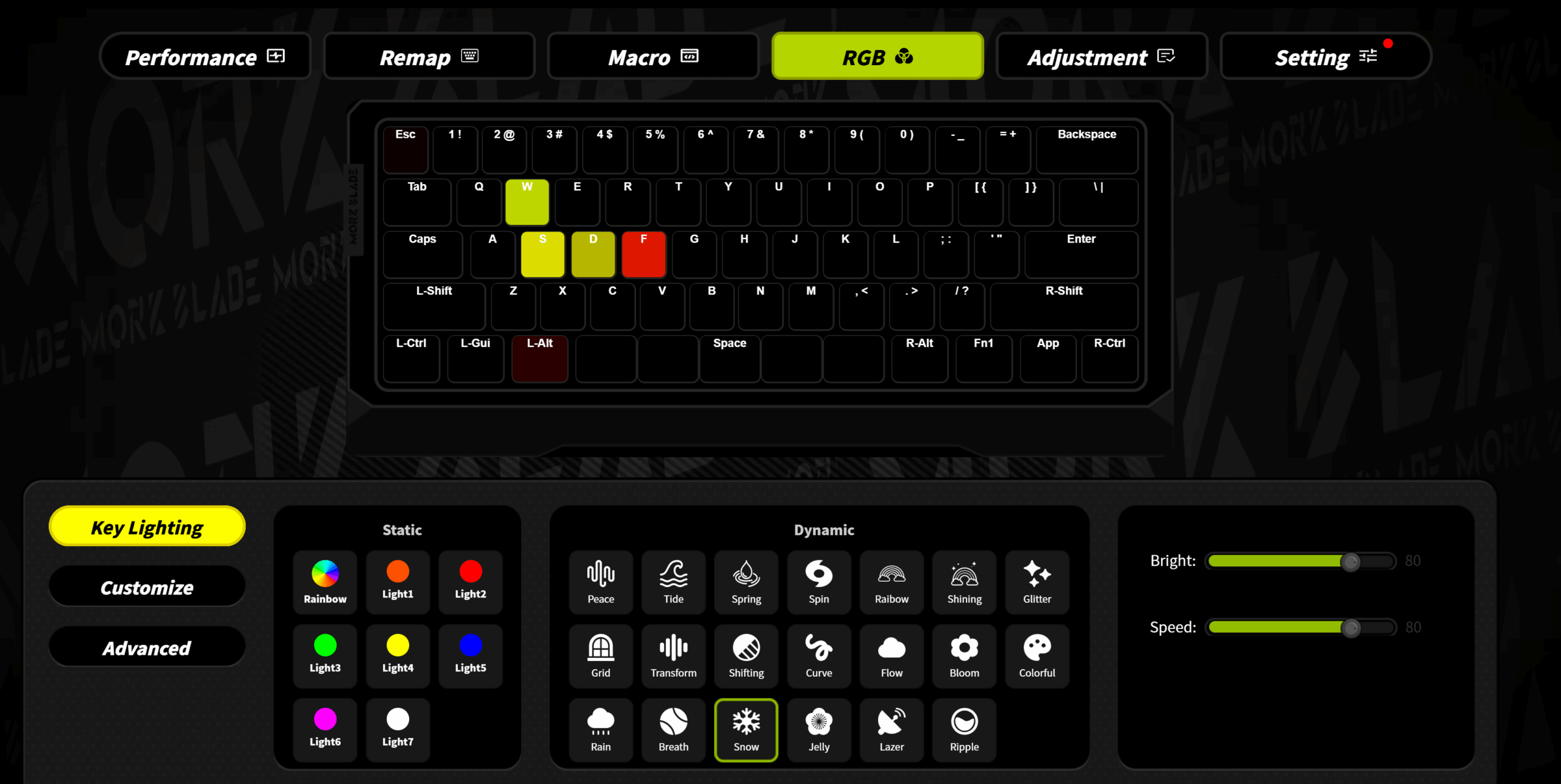
Tip: Save your custom lighting profiles before you Reset Aula Keyboard. This process erases all personalized settings.
You’ll notice the lights return to their default pattern. If the keyboard doesn’t restart, unplug it and try again.
AulaL99 Reset
The AulaL99 model uses the classic reset combo:
- Press and hold
Fn + Escfor five seconds. - Watch for the backlight to flash or change color.
- Release the keys.
If you use Bluetooth, check your device list after you Reset Aula Keyboard. Sometimes you need to re-pair your devices.
Aula F108 Reset
For the Aula F108, resetting is easy:
- Hold down
Fnand tapEsc. - Wait for the keyboard to blink or make a sound.
- Release the keys.
Pro Tip: If you have custom macros or lighting, back them up before you Reset Aula Keyboard. The reset wipes these settings.
After you finish, test every key to make sure everything works. If you still have issues, try switching USB ports or reconnecting via Bluetooth.
| Model | Reset Combo | Visual/Audio Cue | Special Notes |
|---|---|---|---|
| Most Aula | Fn + Esc | Backlight flash/beep | Resets lighting/settings |
| F75 | Fn + Esc | Backlight to default | Bluetooth devices not deleted |
| F98 | Fn + Knob | Lights blink/change | Try unplugging if no cue |
| F99 | Fn + Esc (5 sec) | Lighting resets | Custom profiles erased |
| Aula L99 | Fn + Esc | Backlight flash | Re-pair Bluetooth if needed |
| F108 | Fn + Esc | Blink/sound | Backup macros/lighting first |
If you follow these steps, you’ll Reset Aula Keyboard and solve most common problems. Whether you use a wired or wireless Keyboard Aula, these methods help you restore factory settings and get back to work.
Troubleshooting
Sometimes, you follow all the steps to Reset Aula Keyboard, but things still don’t work out. Don’t worry—troubleshooting can help you get your Aula Keyboard back on track. Let’s walk through some common fixes.
Check Connections
Before you try anything else, make sure your Keyboard Aula has a solid connection. Many reset problems come from simple connection issues. Here are the most frequent things that can go wrong:
- Low or dead batteries
- Bluetooth not enabled or discoverable
- USB dongle not plugged in securely
- Loose batteries or obstructions causing drops
To check your connections, follow these steps:
- Turn on Bluetooth on your computer or device.
- If you use Bluetooth, make sure your Aula Keyboard is discoverable.
- For wireless models with a USB dongle, check that the dongle sits firmly in a working USB port.
- Try moving the dongle to another port if you suspect a problem.
Tip: Fresh batteries or a different USB port can solve many connection issues in seconds.
Alternative Reset Methods
If the standard reset combo doesn’t work, try these alternatives:
- Unplug your Keyboard Aula, wait a few seconds, then plug it back in.
- Switch between wired and wireless modes if your Aula supports both.
- Restart your computer or device.
Some models may have unique reset steps. Always double-check your user manual for model-specific instructions.
Compatibility
Not every reset method works for every Aula Keyboard. To avoid frustration, make sure you use the right steps for your model. You can:
- Look up your exact model in the user manual.
- Visit Aula’s official website for updated guides.
Using the wrong reset combo might do nothing, so it pays to check first.
Contact Support
Still stuck? Aula’s customer support team can help. They usually reply to emails within 48 hours. When you reach out, include your keyboard model and a description of the issue. This helps them solve your problem faster.
Note: Keep your purchase info handy. Support may ask for it to verify your warranty.
Troubleshooting can feel frustrating, but these steps often get your Keyboard Aula working again. If you need to Reset Aula Keyboard, a little patience and the right approach go a long way.
After Reset
Reconfigure Settings
You just finished the reset. Now, it’s time to set up your Aula Keyboard the way you like. Start by checking your lighting profiles, macros, and key assignments. If you had custom shortcuts or colors, you’ll need to add them again. Sometimes, you might run into a few hiccups during this step:
- You notice frequent disconnections. Loose batteries or interference from other devices can cause this.
- The keyboard types strange characters. Double-check your layout settings and make sure accessibility features are off.
- The battery drains quickly. Low-quality batteries or leaving the keyboard on all day can be the culprit.
Tip: Always use good batteries and turn off your Keyboard Aula when you’re done to avoid these problems.
Test Keyboard
Before you jump back into work or gaming, test every key and function. Here’s a quick checklist to help you make sure your Aula Keyboard works perfectly:
- Check battery status. Replace or recharge if needed.
- Make sure your Bluetooth or USB dongle connection is secure.
- Pair the keyboard again if you use wireless mode.
- Clean the keyboard. Dust and debris can hide under the keys.
- Restart your device in Safe Mode to spot any software conflicts.
- Follow the manual’s reset steps if something still feels off.
If everything checks out, you’re good to go. You’ll notice smoother typing and fewer glitches after you Reset Aula Keyboard.
Prevent Issues
Want to keep your Aula Keyboard running smoothly for the long haul? Try these simple habits and maintenance tips:
You can also keep your Keyboard Aula in top shape by cleaning it with a soft cloth, protecting it from moisture, and storing it in a safe spot. If you travel often, invest in a sturdy case. Regular checkups by a technician help too.
Remember: A little care goes a long way. You’ll spend less time troubleshooting and more time enjoying your Aula Keyboard.
You’ve learned how to reset your Aula Keyboard and tackle common issues. Here are some key takeaways:
- Resetting your Keyboard Aula to factory settings fixes problems from wrong configurations.
- Checking battery status keeps your Aula working smoothly.
- Solving connectivity issues helps you maintain a stable connection.
Test your keyboard after each step. If you still face trouble, reach out for help. With a little care, your Aula Keyboard stays reliable and ready for anything. 😊
FAQ
How do I know if my Aula Keyboard reset worked?
You’ll see the backlight flash or hear a beep after you reset your Aula Keyboard. If the keys respond and the lighting returns to default, you did it right. Try typing to confirm everything works.
Will resetting my Keyboard Aula delete my Bluetooth pairings?
No, most Aula models keep your Bluetooth pairings after a reset. You may need to re-pair if you notice connection issues. Always check your device list after you reset your Keyboard Aula.
What should I do if my Aula Keyboard still acts up after a reset?
Try unplugging your Aula Keyboard and plugging it back in. Switch USB ports or restart your device. If problems continue, contact Aula support for help. Sometimes, a quick battery change fixes things.
Can I reset my Aula Keyboard without losing custom lighting profiles?
Resetting usually erases custom lighting profiles on your Keyboard Aula. Back up your settings before you start. After the reset, you can restore your favorite colors and effects.

Add comment
You must be logged in to post a comment.