
Ergonomic Keyboard and Mouse: A Practical Buyer’s Guide
If your wrists feel tight after an 8-hour workday, or your forearm starts to ache halfway through a long gaming session, your setup is sending you a message. An ergonomic keyboard and mouse won’t magically fix everything, but the right combo can make it easier to keep a neutral wrist position, reduce awkward reach, and stay comfortable longer.
This guide gives you a simple framework to choose the right set for your desk. After that, you’ll see a few cost-effective model picks (including options if you want a gaming keyboard and mouse combo).
Start here: what “ergonomic” should actually mean
A good ergonomic setup supports two basics:
- Your wrists stay as straight as possible while typing and mousing
- Your shoulders stay relaxed because your arms aren’t reaching or hovering
If you want a quick sanity check, OSHA’s guidance on computer workstation keyboards and the NIH’s computer workstation self-assessment checklist (PDF) both focus on the same idea: adjustability and neutral positioning beat “one perfect device.”
Pro Tip: Before you buy anything, fix the easy stuff first: chair height, elbow angle, and mouse distance. Better gear helps most when the basics aren’t fighting you.
A quick needs assessment (so you don’t buy the wrong thing)
Answer these in 30 seconds:
- Work, gaming, or truly both? If you switch contexts, you’ll want comfort features without losing responsiveness.
- Do you feel pain in your wrist, your forearm, or your fingers? Wrist issues often point to angle and mouse grip; finger fatigue often points to switch feel and key force.
- Do you need portability or desk space back? Smaller layouts can reduce reach, but they change your muscle memory.
What to look for in the best ergonomic keyboard and mouse for office work
Office comfort usually comes down to two things: how your hands sit, and how much unnecessary motion you do all day.
Keyboard criteria
- Layout that reduces reach: Compact layouts can keep your mouse closer, so your shoulder isn’t constantly abducted.
- Key feel that doesn’t punish your fingers: You want a consistent, comfortable actuation that doesn’t require heavy force.
- Stable typing angle: A slight, comfortable tilt can help, but extreme angles often create new problems.
Mouse criteria
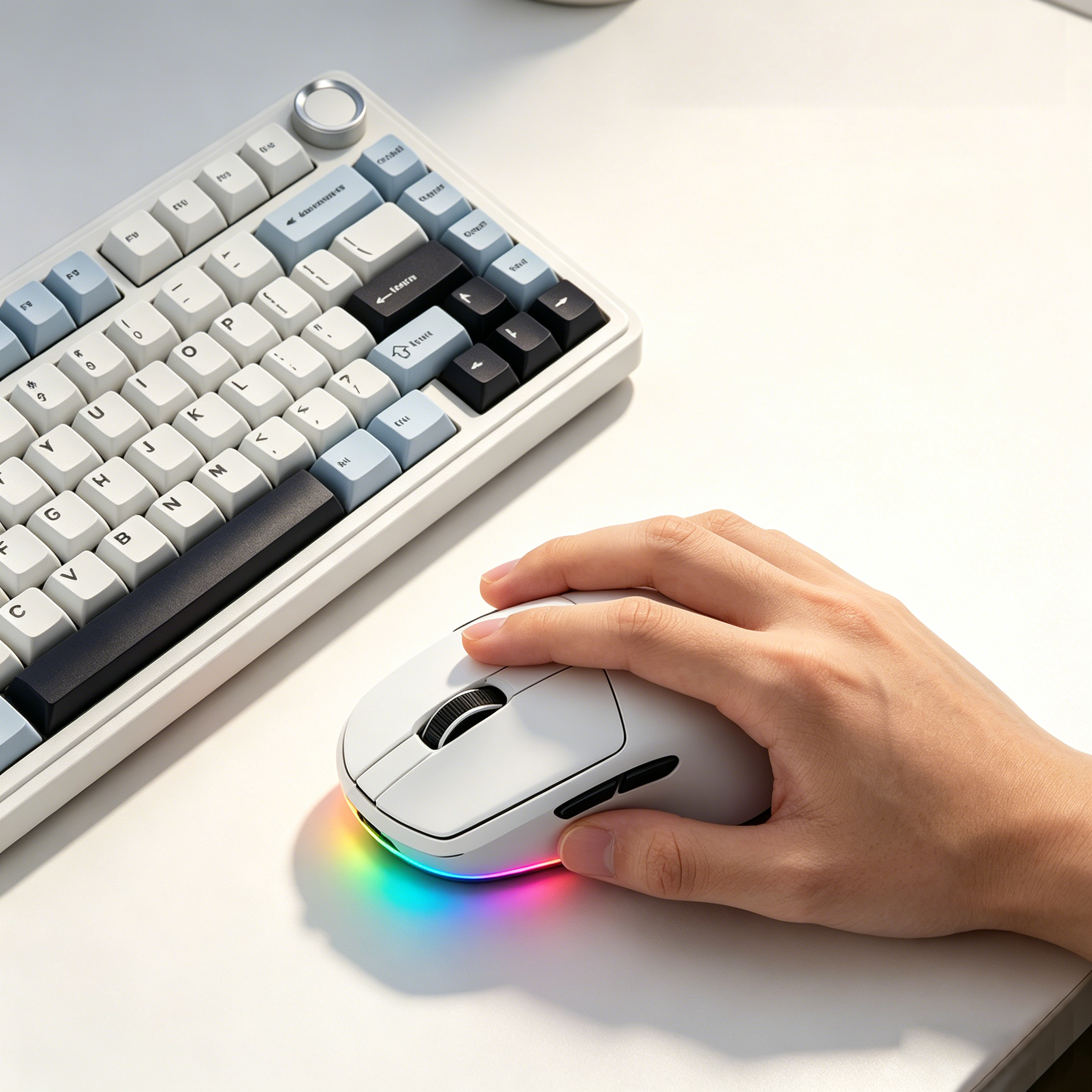
If you’re shopping specifically for an ergonomic mouse for long hours work, prioritize:
- A shape that matches your grip (palm vs claw vs fingertip)
- Low friction and a comfortable weight so you’re not “pinching” the mouse to control it
- Sensitivity control (DPI) so you can reduce strain by moving your arm less
What gamers should prioritize (without sacrificing comfort)
Gaming adds two constraints:
- fast, repeatable inputs
- sustained sessions where tension quietly builds
For a keyboard, look for consistent switch feel and a layout that keeps your mouse closer. For a mouse, look for reliable sensor performance, comfortable clicks, and stable connectivity if you’re going wireless.
The best setups for gamers also avoid a classic trap: pushing the keyboard too far forward and then “reaching” for the mouse all night.
⚠️ Warning: If your mouse hand is reaching past your shoulder line, no mouse shape will save you. Bring the mouse closer first.
Where AULA fits in (and why the “custom” angle matters)
If you like dialing in your setup, a custom mechanical keyboard can be a real comfort upgrade because you can tune feel (and sometimes layout) instead of forcing your hands to adapt.
AULA’s lineup is built around mechanical keyboards and gaming mice. If you want to compare layouts and mice in one place, start at the official store:AULA.
AULA keyboard picks that can work well for mixed office + gaming use
Here are a few AULA models often considered for work + play setups:
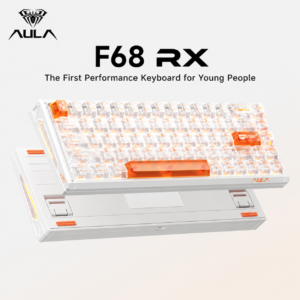
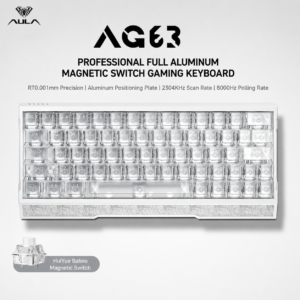
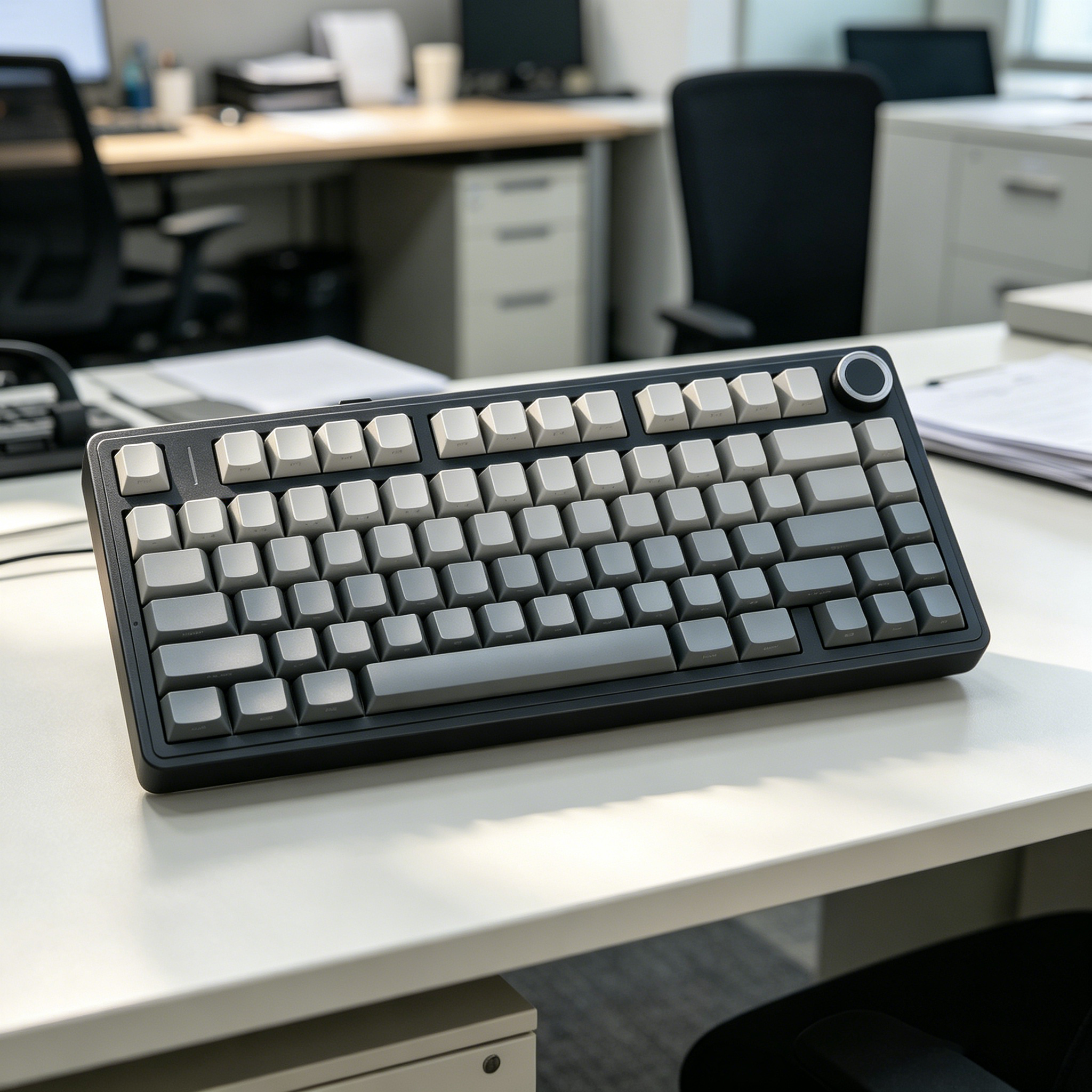
- AULA F75: A compact layout that can help keep your mouse closer (useful when you’re trying to reduce shoulder reach).
- AULA F87 Pro: A more traditional layout feel for people who don’t want to relearn muscle memory.
- AULA HERO68: A compact option if you want desk space back and prefer a smaller footprint.
- AULA King68: Another compact pick for people who like minimal layouts.
If you’re deciding between sizes, don’t overthink it: choose the smallest layout that still lets you work comfortably every day.
AULA ergonomic mouse options to consider
AULA also sells multiple mice positioned for comfort and long sessions. Depending on what you want, these product pages are a good starting point:
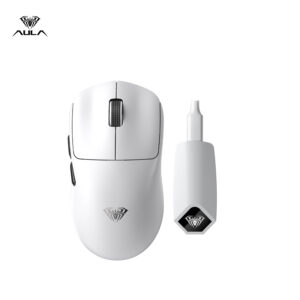
- AULA SC580 wireless mouse (listed with ergonomic design and up to 10,000 DPI on the product page)
- AULA SC900 ergonomic gaming mouse
- AULA V9 ergonomic Bluetooth gaming mouse
- AULA X9 series gaming mouse (positioned for competitive play)
Pick the mouse based on grip first, then tune DPI and buttons second.
Red flags that usually lead to discomfort
- You’re relying on a wrist rest to “hold” your wrists up instead of using it lightly between typing bursts.
- Your keyboard is too high, so your wrists bend upward while typing.
- Your mouse is too far away, so your shoulder stays tense.
- You bought a small mouse because it looked sleek, and now your hand is cramped into a claw grip all day.
A simple setup checklist (5 minutes, no new gear)
- Set chair height so elbows sit around 90–100 degrees.
- Pull your keyboard back so your elbows stay near your sides.
- Keep the mouse close enough that your upper arm stays relaxed.
- If you use a wrist rest, use it as a “parking spot,” not a brace.
Next steps
If you want to upgrade both comfort and performance, start by picking the right layout size and mouse shape, then narrow down the features you’ll actually use.
To browse AULA options and compare models, head to the official store.

Add comment
You must be logged in to post a comment.