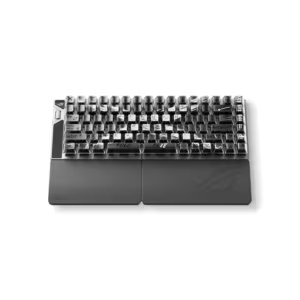

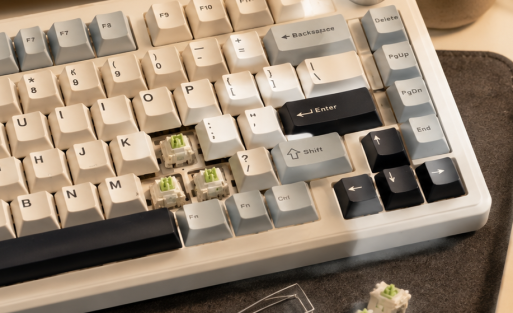
AULA Keyboard Not Working? Complete Fix Guide for Gaming Keyboards
If your AULA keyboard suddenly stops working, disconnects randomly, fails to respond, or certain keys stop functioning during gaming, you are not alone. Keyboard problems are one of the most common issues experienced by gamers and everyday users, especially after software updates, firmware changes, RGB customization, or switching between wired and wireless modes.
The good news is that most AULA keyboard issues can be fixed quickly without replacing the keyboard.
In this complete troubleshooting guide, we explain how to fix an AULA keyboard that is not working properly, including connection issues, RGB problems, unresponsive keys, driver errors, latency issues, firmware problems, and gaming-related input delays.
Whether you use a Hall Effect keyboard, mechanical gaming keyboard, wireless keyboard, or RGB gaming keyboard, this guide will help you diagnose and solve the problem step by step.
Why Is My AULA Keyboard Not Working?
There are several reasons why an AULA keyboard may stop working correctly.
Common causes include:
- USB connection issues
- Driver conflicts
- Firmware errors
- Wireless signal instability
- Software problems
- RGB software conflicts
- Dust or debris inside switches
- Incorrect keyboard settings
- Windows update issues
- Low battery in wireless mode
Sometimes the problem is hardware-related, but in many cases, the issue can be fixed within a few minutes using simple troubleshooting steps.
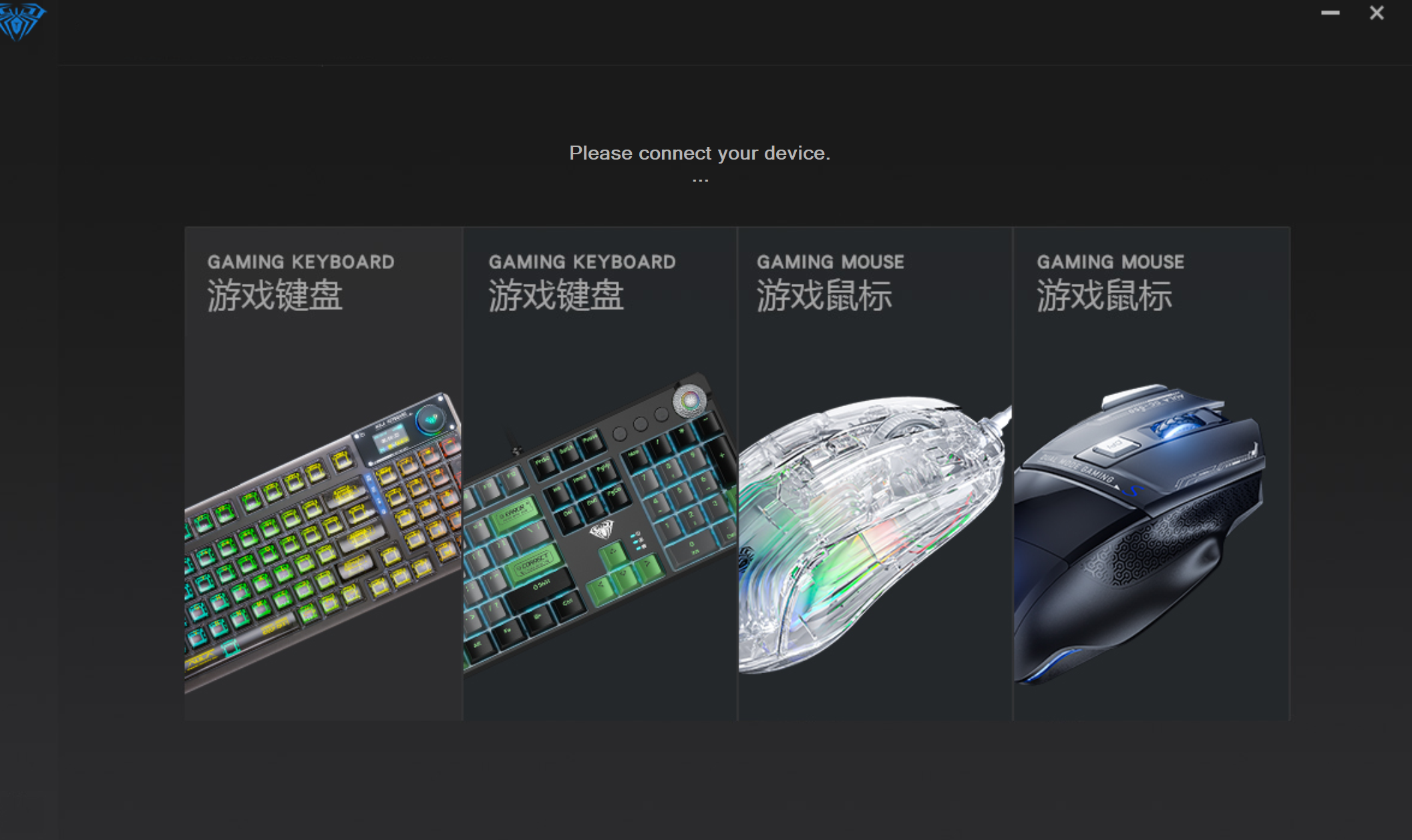
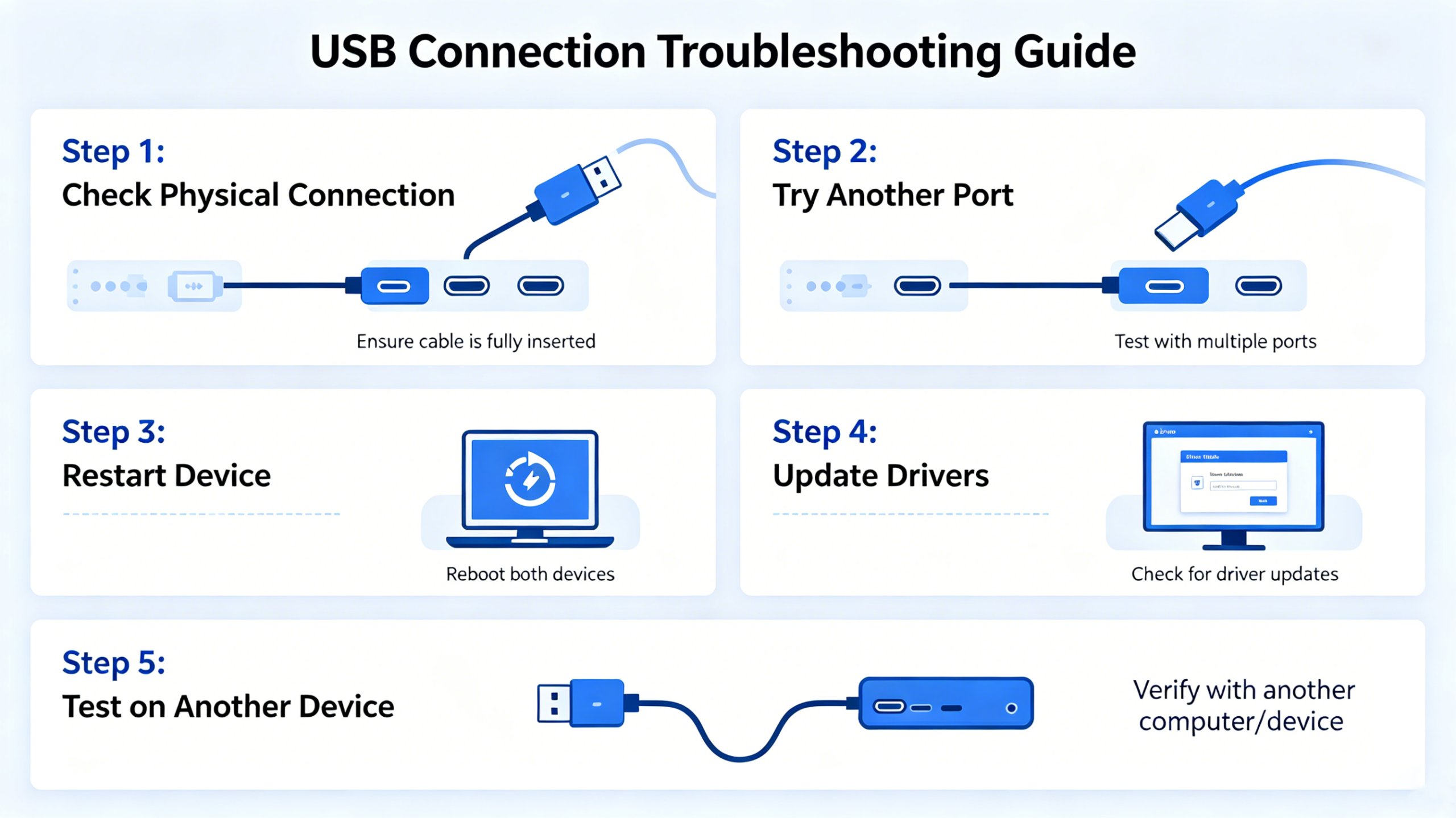
Check the USB Connection First
Before changing software settings or reinstalling drivers, check the physical connection.
Many keyboard problems are caused by unstable USB connections or faulty cables.
What You Should Check
- Disconnect and reconnect the keyboard
- Try another USB port
- Avoid using USB hubs
- Connect directly to the motherboard USB port
- Use the original cable if possible
For gaming keyboards with high polling rates such as 1000Hz or 8000Hz, stable USB bandwidth is especially important.
Some users may experience random disconnects when using overloaded USB hubs or low-quality extension cables.
Restart Your Computer
This may sound simple, but restarting your PC can solve temporary driver conflicts and software-related keyboard issues.
After restarting:
- Reconnect the keyboard
- Wait for Windows to reinstall basic drivers
- Test the keyboard before launching additional RGB software
Sometimes Windows background services can interfere with gaming keyboard detection after updates or sleep mode.
Check If the Keyboard Works on Another Device
One of the fastest ways to identify whether the issue is hardware or software related is to test the keyboard on another PC or laptop.
If the keyboard works normally on another system:
- The issue is likely software-related
If the keyboard still does not work:
- The issue may involve hardware or firmware
This step helps narrow down the problem before making unnecessary changes.
Driver corruption is one of the most common causes of gaming keyboard problems.
If your keyboard:
- stops responding
- disconnects frequently
- has broken RGB controls
- experiences input lag
then reinstalling the keyboard drivers may solve the issue.
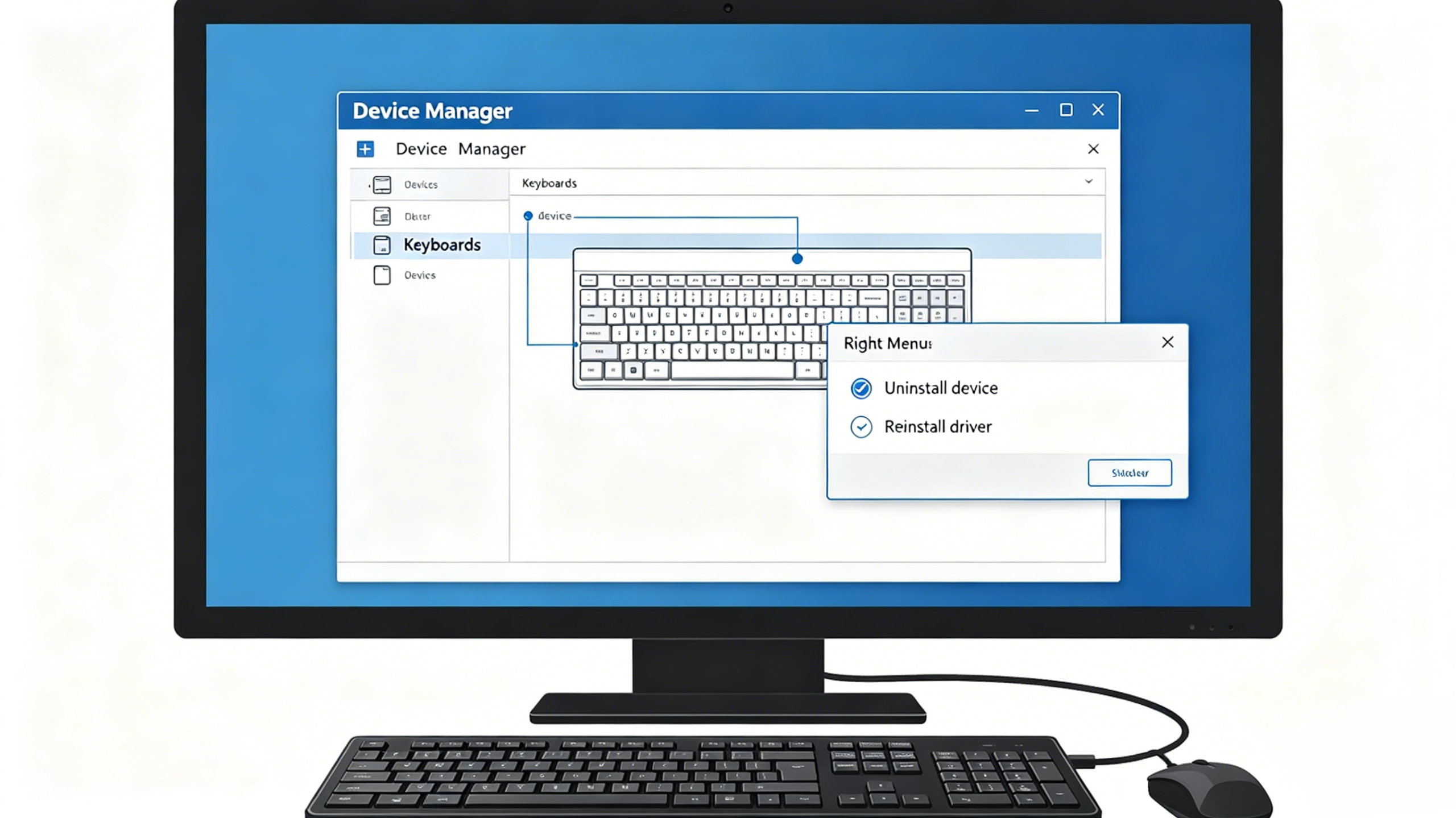
How to Reinstall the Drivers
Step 1
Open Device Manager in Windows.
Step 2
Locate:
- Keyboards
- Human Interface Devices
Step 3
Right-click the AULA keyboard device and uninstall it.
Step 4
Restart your computer.
Step 5
Reconnect the keyboard and allow Windows to reinstall the drivers automatically.
RGB software conflicts or outdated keyboard software can also cause keyboard malfunctions.
Some users experience:
- RGB freezing
- macro errors
- keyboard input delay
- Rapid Trigger issues
- software crashes
after outdated firmware or software installations.
Always download the latest software version from the official AULA support page.
Recommended steps:
- Uninstall old software completely
- Restart your PC
- Install the latest version
How to Fix Unresponsive Keys
If only certain keys stop working, the issue may be caused by:
- dust buildup
- switch instability
- firmware bugs
- accidental macro reassignment
Basic Fixes
Clean the Keyboard
Dust and debris can affect switch responsiveness over time.
Use:
- compressed air
- soft keyboard brush
- microfiber cloth
Avoid excessive liquid cleaners.
Reset Keyboard Settings
这是测试文本,单击 “编辑” 按钮更改此文本。
Test the Keyboard Online
Use an online keyboard tester to identify which keys are not responding correctly.
This helps determine whether the issue is:
- physical
- software-related
- firmware-related
How to Fix RGB Lighting Problems
RGB lighting issues are extremely common with gaming keyboards.
Common RGB problems include:
- lights not turning on
- frozen effects
- incorrect colors
- RGB desynchronization
Fixes to Try
Restart the RGB Software
Close the software completely and reopen it.
Reconnect the Keyboard
Disconnecting and reconnecting the keyboard may reload onboard RGB profiles.
Reset RGB Profiles
Corrupted RGB profiles can cause lighting problems.
Reset the profile to factory default settings.
Disable Other RGB Software
Programs such as motherboard RGB software may conflict with keyboard RGB controls.
Examples include:
- ASUS Aura Sync
- MSI Mystic Light
- Razer Synapse
- SignalRGB
How to Fix Keyboard Input Delay
Some users report that their keyboard feels delayed during gaming.
This issue is especially noticeable in FPS games like:
- Valorant
- CS2
- Apex Legends
Input delay can make movement feel slower and less responsive.
Possible Causes
- Low polling rate
- Bluetooth latency
- outdated firmware
- overloaded CPU usage
- unstable USB connection
Recommended Fixes
Use Wired Mode
Wired mode usually provides the lowest latency.
Increase Polling Rate
Many gaming keyboards support:
- 1000Hz
- 4000Hz
- 8000Hz polling rate
Higher polling rates reduce input delay.
Close Background Programs
Heavy background applications may increase system latency.
Firmware updates often improve keyboard stability and responsiveness.
Wireless Keyboard Problems and Fixes
Wireless gaming keyboards may occasionally experience:
- signal drops
- delayed response
- connection instability
Improve Wireless Stability
Move the Receiver Closer
Keep the wireless receiver close to the keyboard.
Avoid Signal Interference
Wi-Fi routers and Bluetooth devices may interfere with wireless signals.
Charge the Battery
Low battery levels may reduce wireless stability and polling consistency.
Switch to 2.4GHz Mode
For gaming, 2.4GHz wireless mode is usually faster and more stable than Bluetooth.
How to Reset an AULA Keyboard
Factory resetting the keyboard can solve many software-related issues.
General Reset Process
The reset combination may vary depending on the keyboard model.
Typically:
- Hold FN + ESC
- Or FN + Backspace
- Hold for several seconds
After resetting:
- reconnect the keyboard
- reopen the software
- test all keys again
Always check your keyboard manual for the exact reset method.
Firmware Update Tips
Firmware updates can improve:
- stability
- polling consistency
- compatibility
- Rapid Trigger functionality
However, interrupted firmware updates may cause problems.
Important Tips
- Never disconnect the keyboard during updates
- Close unnecessary applications
- Use wired mode
- Disable antivirus temporarily if necessary
If a firmware update fails:
- restart the PC
- reconnect the keyboard
- retry the update process
When Is the Problem Hardware Related?
Sometimes troubleshooting does not solve the issue.
Possible hardware-related signs include:
- completely dead keyboard
- damaged USB port
- repeated disconnects on multiple PCs
- broken switches
- water damage
In these situations, contacting official customer support may be necessary.
Best Practices to Prevent Future Keyboard Problems
To keep your gaming keyboard working properly:
- Keep firmware updated
- Avoid liquid spills
- Clean the keyboard regularly
- Use stable USB connections
- Avoid forcing cables
- Store the keyboard safely during travel
For competitive gaming setups, maintaining stable keyboard performance is especially important for consistent input response and low latency gameplay.
FAQ
Why is my AULA keyboard not responding?
The issue may be caused by driver conflicts, unstable USB connections, firmware errors, or software problems.
How do I reset my AULA keyboard?
Most AULA keyboards can be reset using FN key combinations such as FN + ESC or FN + Backspace.
Why is my gaming keyboard delayed?
Keyboard delay may be caused by low polling rates, Bluetooth latency, outdated firmware, or background system usage.
Can RGB software cause keyboard issues?
Yes. RGB software conflicts may cause lighting freezes, detection issues, or unstable keyboard behavior.
Does wired mode reduce latency?
Yes. Wired mode generally provides more stable and lower latency performance compared to Bluetooth connections.
Why are some keys not working?
Dust buildup, switch problems, firmware bugs, or accidental key remapping can cause certain keys to stop responding.

Add comment
You must be logged in to post a comment.