
How to Design Your Own Aula Custom Keycap Set
You dream of making your Aula stand out. Custom keycaps let you show off your style and personality. Imagine typing every day on a keyboard you designed. You do not need special skills to start. Get creative and enjoy the process—this guide makes it easy.
Start Your Custom Keycaps Concept
Features
Do you want your keyboard to stand out? Then look for design inspiration that matches your style. Many people get inspiration from creators who showcase their work on social media and websites.
Inspiration Sources
You can check out their designs here:
- Watch on TikTok (Design Showcase)
- Watch on TikTok (@1kseer)
- Watch on TikTok (@jwnstudio)
- Watch on TikTok (@ninaaniceto)
You can also see other customer shares under the design links. If you need more details, you can contact our service team to ensure your needs are fully met. Contact: [email protected]
Choose a Theme
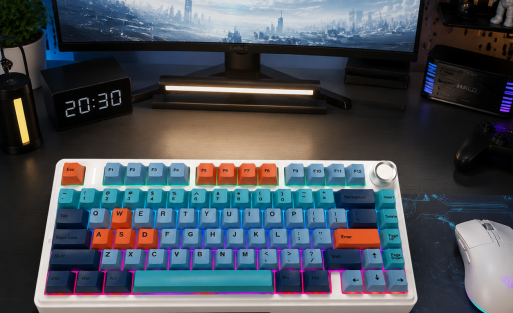
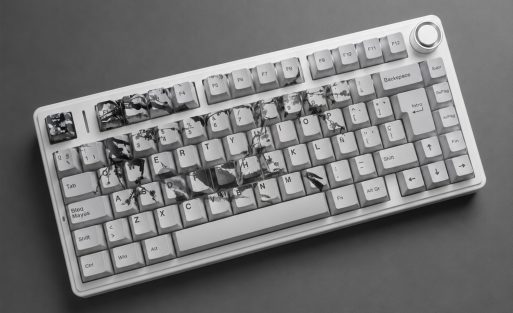
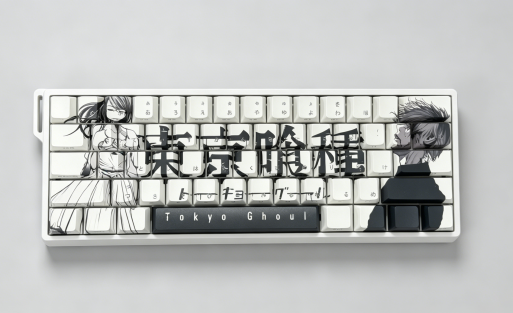
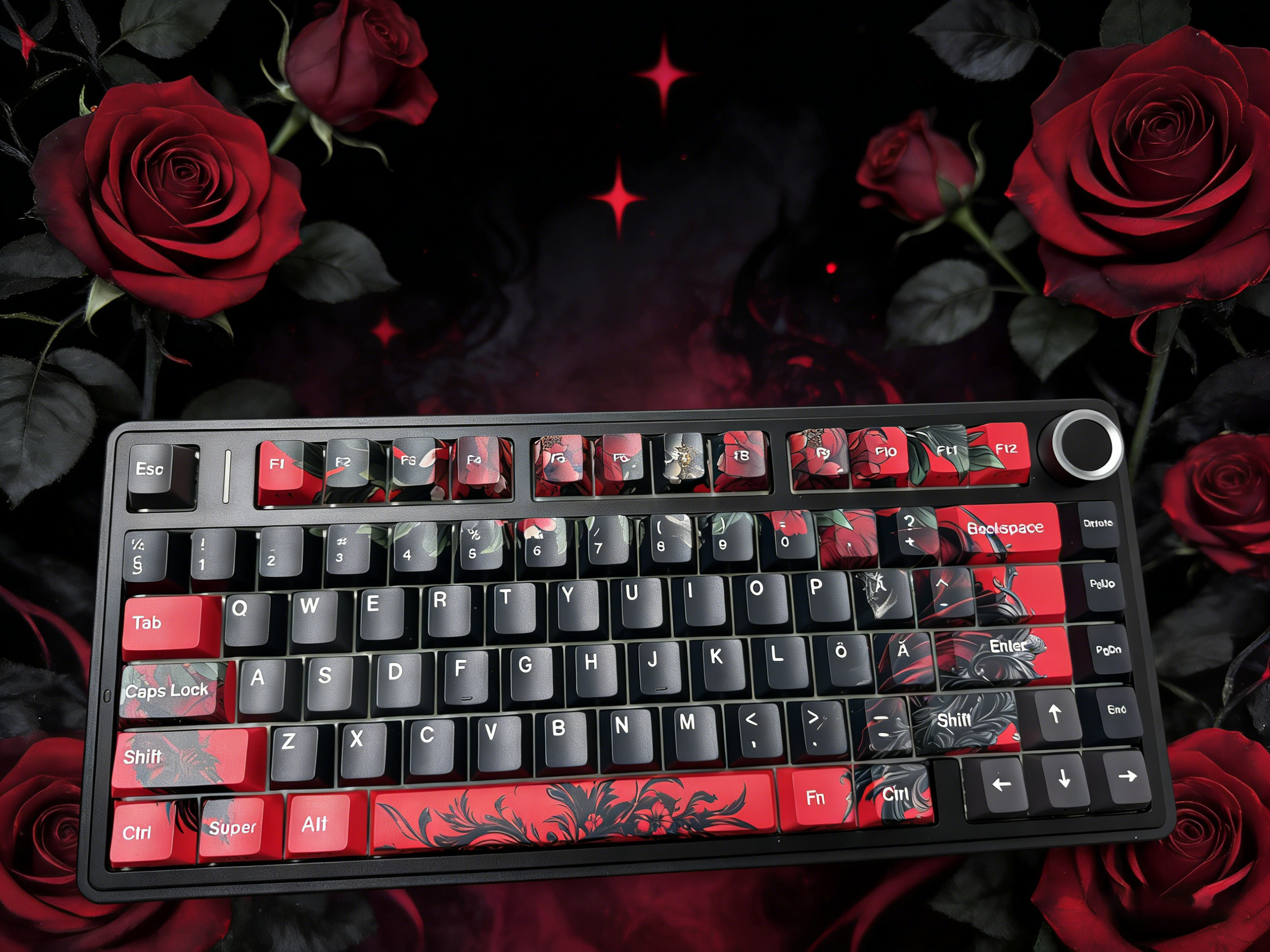
Picking a theme helps your keyboard look neat. You can pick colors, styles, or images that match you. Aula F75 lets you change color zones and upload images, so you have many choices.
| Color and Design | Description | Usability Impact |
|---|---|---|
| Bold Colors | Bright and stands out | Shows your style |
| Pastels | Soft and gentle | Looks nice |
| Unique Legends | Custom artwork | Makes it personal |
Color Zones on Aula
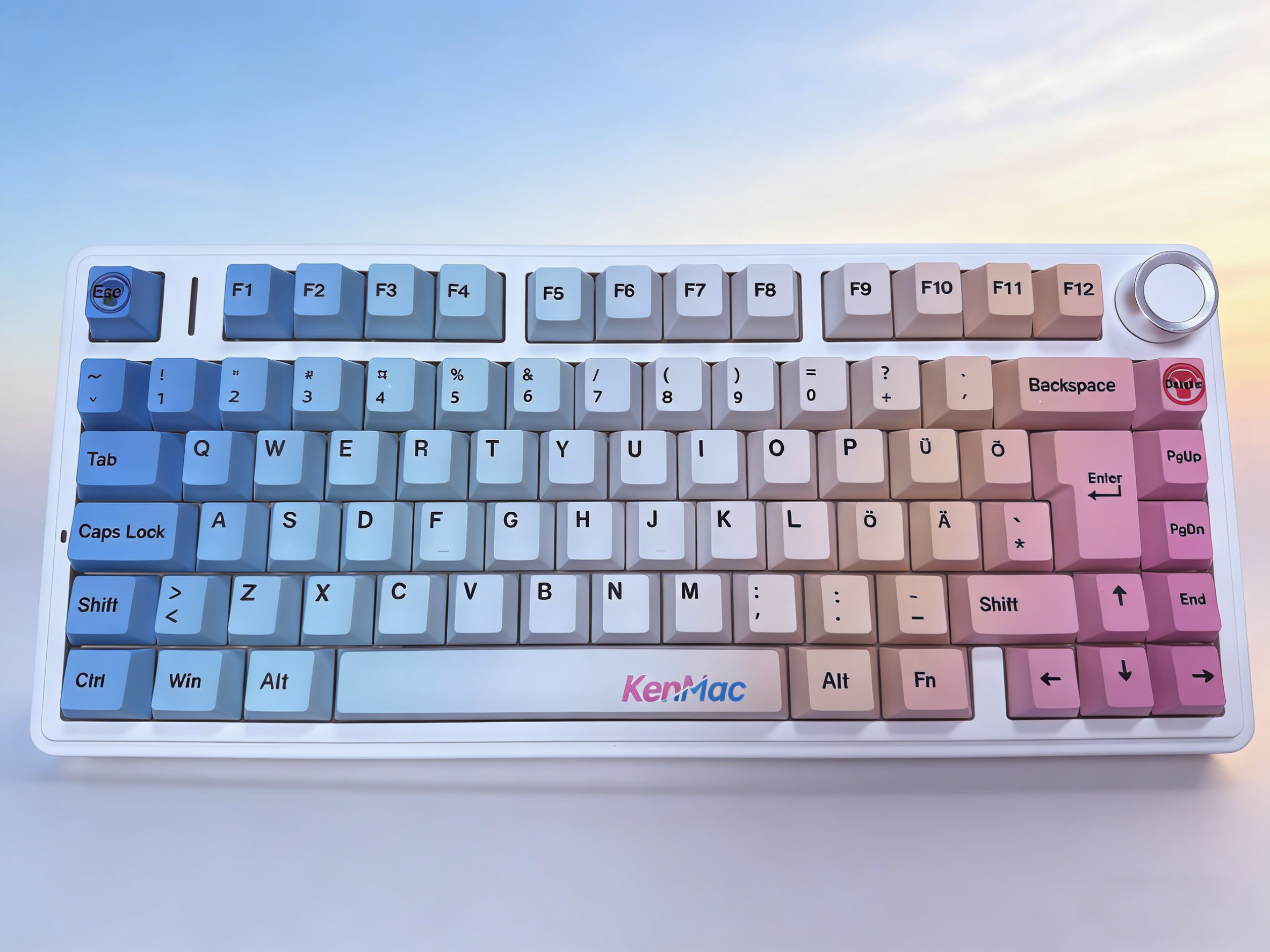
You get to play with color when you design your Aula. This keycaps lets you pick different colors for each key zone. You can make the number row one color and the letter keys another. Some people like to use bold colors for the main keys and softer shades for the modifiers. You can even match the chassis color to your keycap set. Aula gives you lots of choices, so your keyboard can look just how you want.
Want to show off your favorite sports team? Use their colors for each zone. Love a certain cartoon? Pick colors that match the characters. You can mix and match until you find the perfect look. The color-zoned options make your custom keycaps stand out.
PBT vs ABS Materials
| Keycap Material | Durability | Feel |
|---|---|---|
| PBT | More durable, resistant to shine | Slightly rougher texture |
| ABS | Less durable, prone to shine | Smoother texture |
Visualize Your Keycap Design
Use Design Tools
Try Online Configurators
| Step | What You Do | Why It Helps |
|---|---|---|
| Choose a Template | Start with a blank layout | Sets the base for switch and keyboard colors |
| Add Colors | Pick colors for areas | Matches your theme |
| Upload Images | Add pictures or logos | Personalizes your keycaps |
| Resize Images | Fit images onto keycaps | Keeps the design neat |
| Preview | View the final design | Prevents surprises |
Note: If you want to make sure your design prints well, use high-quality images. Clear pictures keep your keycaps looking sharp.
Select Profiles and Layouts
Cherry Profile Overview
| Profile | Height | Curve | Comfort Level |
|---|---|---|---|
| OEM | Standard | Slightly Curved | Feels familiar for most users |
| Cherry | Lower | Gentle Curve | Comfortable for long typing sessions |
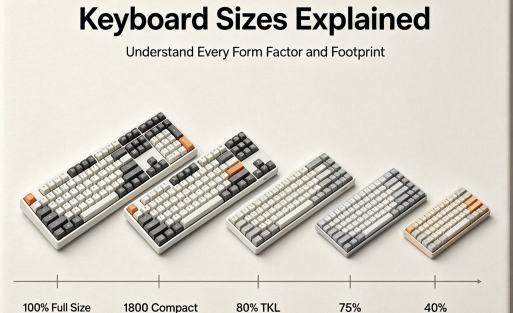
Aula Layout Options
Prepare Files for Production
File Formats Needed
Order and Review Custom Keycaps
Production Timeline
Sample Review Tips
| Category | Details / Action | Purpose / Note |
|---|---|---|
| Supported Layouts | 60, 75 (ANSI & ISO), 99, 108-key | Covers all commonly used keys |
| Customization | Swap Modifier keys (Enter, Shift, etc.) | Match your style and typing needs |
| Review: Visuals | Check every key for correct color and image | Spot mistakes before production |
| Review: Legends | Make sure legends are clear and readable | Ensure design quality |
| Review: Layout | Confirm layout matches your needs | Avoid compatibility issues |

Add comment
You must be logged in to post a comment.