3 Quick Steps to Update Aula F87 Pro Drivers Today
Updating the Aula F87 Pro driver takes just a few minutes and can significantly improve your keyboard experience with smoother and more reliable performance. The latest driver also unlocks additional enhanced features.
Users who keep their drivers current avoid common compatibility issues and unlock the full potential of their devices.
Important Notes Before Updating the Aula F87 Pro Driver:
Check your current driver version before updating to avoid unnecessary downloads and save time.
Download the driver from official sources such as aulakeyboard.com to ensure safety and access the latest features.
You can also download the driver directly from here: https://aulakeyboard.com/download/aula-f87-pro-driver/
After installation, test your keyboard functions and use the Aula software to confirm the update was successful and to unlock new features.
Check Current Version
How to Check Your Current Driver Version
Before downloading a new driver, it’s important to check the current version running on your Aula F87 Pro. This step helps you avoid unnecessary updates and save time. Follow the steps below to find your driver information:
Connect your Aula F87 Pro keyboard to your computer.
Open Device Manager on your Windows system.
Expand the Keyboards section and locate the Aula F87 Pro entry.
Right-click on the device name and select Properties.
Click on the Driver tab to view the driver version and date.
Tip: If you have the Aula software installed, you can also check the driver or firmware version directly within the app — it’s usually displayed on the main interface.
Keeping a record of your current version helps you compare it with the latest version available online.
Decide If Update Needed
Once you’ve found your current driver version, compare it with the latest available version on our official website:
👉 https://aulakeyboard.com/download/aula-f87-pro-driver/
This ensures accuracy and helps you determine whether an update is necessary.
| Step | Action |
|---|---|
| Check Online | Visit aulakeyboard.com |
| Compare Versions | Match installed version with latest |
| Review Release Notes | Look for new features or bug fixes |
Download Aula F87 Pro Drivers
The Aula F87 Pro driver comes with software that unlocks advanced customization options. Through this software, users can:
Remap keys to perform specific functions or macros.
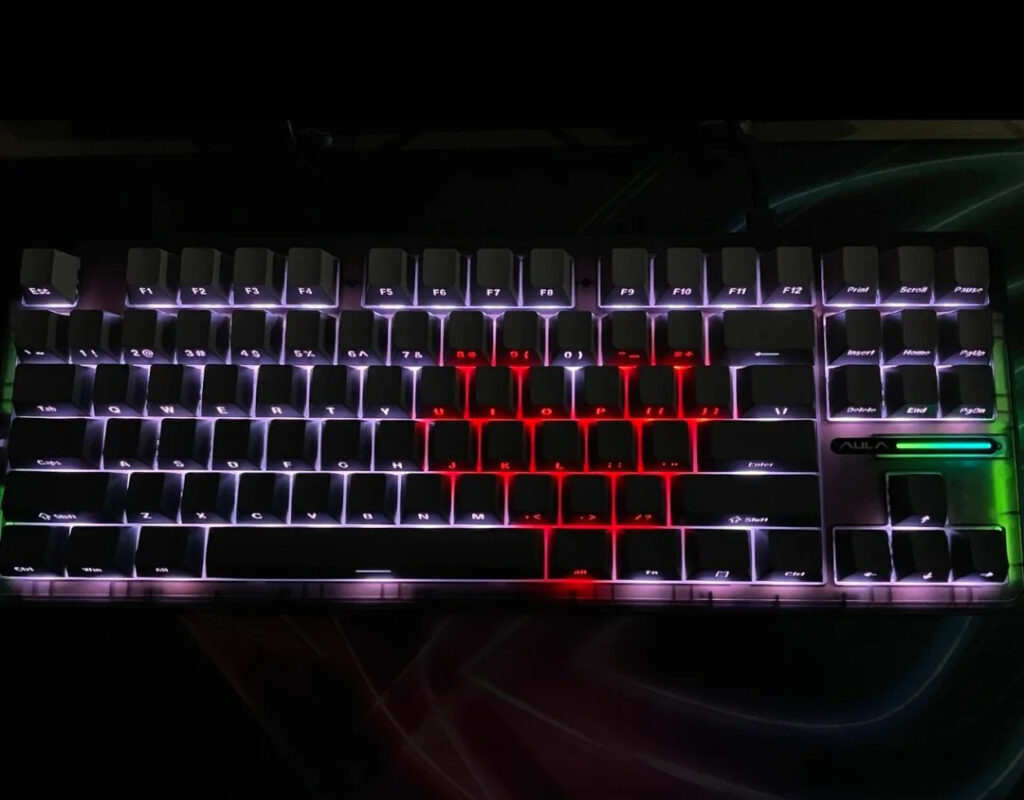
Adjust RGB lighting effects for a personalized look.
Set up tailored key functions and lighting setups.
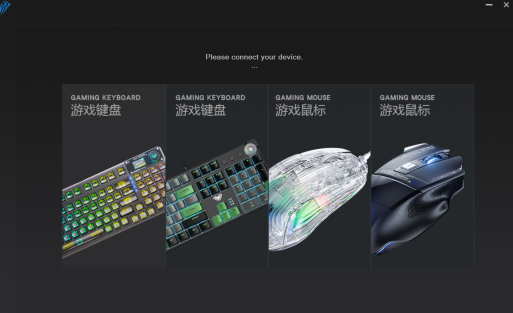
This software interface makes it easy to access features like key remapping and RGB lighting, enhancing the overall user experience.
Start Installation
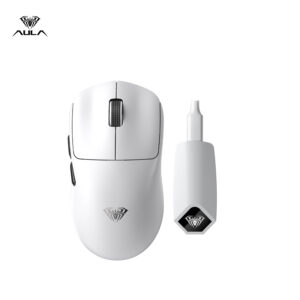
After downloading the driver, users can begin the installation process. The Aula F87 Pro driver supports both wired and 2.4G modes on Windows systems. A USB interface version 1.1 or above is required for wired and 2.4G receiver connections. Bluetooth connectivity is also available, with device names ‘AULA-F87Pro 3.0’ for Windows 7 and lower, and ‘AULA-F87Pro 5.0’ for Windows 8, Windows 10, and above.
To install the driver:
Locate the downloaded file, usually found in the “Downloads” folder.
Double-click the file to start the installation wizard.
Follow the on-screen instructions to complete the setup.
Restart the computer if prompted.
Once installed, users can open the Aula software to access customization features. Hot-swapping is supported, so users can plug and play the keyboard without restarting the system in most cases.
Verify and Troubleshoot
Confirm Update Success
After installing the new driver, users should check if the Aula F87 Pro works as expected. They can start by testing basic typing functions. Next, they should open the Aula software and try customizing RGB lighting. Changing colors or effects helps confirm that the update enabled advanced features. Users can also remap a key and test if the new function works. If the keyboard supports tri-mode connectivity, switching between wired, 2.4G, and Bluetooth modes ensures all connections operate smoothly.
Fix Common Issues
Sometimes, users may notice issues after updating. Common problems include missing RGB effects, key remapping not working, or trouble switching between connection modes. Restarting the computer often resolves minor glitches. If problems continue, users should reinstall the driver or check for conflicts with other software.
A quick search on YouTube provides helpful installation tutorials. Many creators demonstrate step-by-step solutions for the Aula F87 Pro. Watching these videos can help users solve problems quickly.
Updating drivers often fixes issues with RGB profiles and tri-mode connectivity.
FAQ
How often should users check for Aula F87 Pro driver updates?
Checking every two to three months helps users stay current. New updates often bring improved features and better compatibility.
What should users do if the keyboard is not recognized after updating drivers?
Restart the computer.
Try a different USB port.
Reinstall the driver from AulaGear.com or Epomaker.com.
Can users install Aula F87 Pro drivers on macOS?
Aula F87 Pro drivers support Windows only. macOS users can use basic keyboard functions, but advanced features require Windows.

Add comment
You must be logged in to post a comment.