The Ultimate Guide to Aula F75: Battery, Hot-Swap, and Troubleshooting
You can use your Aula Keyboard with Windows, macOS, and most mobile devices—just connect through USB or Bluetooth. For Bluetooth pairing, press Fn + Q/W/E, then follow your device’s pairing instructions. If you see driver errors or incomplete installation, check for system updates or conflicting software.
- Tip: Some function keys may need remapping on macOS.
| Common Compatibility Issue | Description |
|---|---|
| Driver Not Recognized | System may not detect keyboard or driver software properly. |
| Error Messages | Messages like ‘Device Not Found’ or ‘Connection Failed’ may appear. |
Aula Keyboard F75 Battery Indicators
You want to know if your Aula Keyboard F75 needs a charge before a long gaming session. The keyboard provides specific visual cues, but you need to know where to look.
1. The Charging Indicator (Top Left LED) The small LED indicator is typically located at the top left corner of the keyboard (near the ESC key) or integrated into the light strip.
- Blinking White/Red: The battery is low, and you should charge it soon.
- Steady White/Green (while plugged in): The keyboard is charging.
- Light Off (while plugged in): The battery is fully charged.
2. The Shortcut Check (Most Accurate Method) The best way to check the specific battery level is using the built-in shortcut:
- Press and hold FN + B (or check your manual for the specific battery combo).
- Watch the Number Row (1-0) keys light up.
- Example: If keys 1 through 9 light up green, your battery is at 90%. If only 1-3 light up, it’s time to charge.
Checking Aula Keyboard Battery via Software
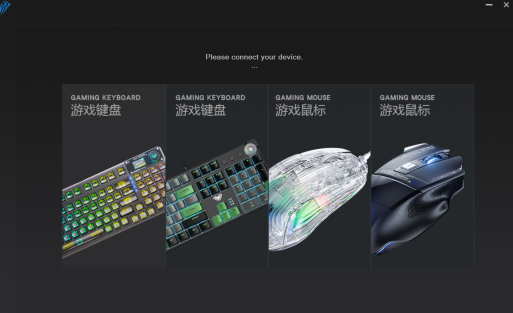
You can also check your Aula Keyboard battery level through the driver software.
- Note: For the software to detect the battery level accurately, it is highly recommended to connect the keyboard via Wired Mode (USB-C) or 2.4G Wireless Mode. The software may not detect the keyboard in Bluetooth mode.
Follow these steps:
- Open the Aula software on your computer.
- Plug in your Aula Keyboard F75 via USB cable.
- Look for the battery icon or percentage display in the bottom or top corner of the dashboard.
Under normal use, the Aula F75 (with its 4000mAh battery) lasts significantly longer if you turn down the RGB brightness.
- If you want a keyboard that blends style, function, and quality, Aula Keyboard stands out as a smart choice.
Aula Keyboard Hot Swap Switches
Hot Swap Overview
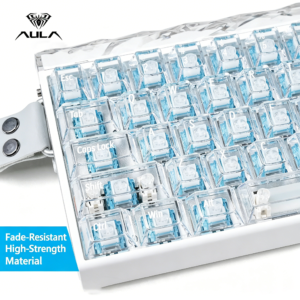
Hot swapping lets you change your keyboard switches without using a soldering iron. You just pull out the old switch and pop in a new one. This feature makes customizing your typing or gaming experience easy and fun. If you want to try different switch feels or replace a broken one, you can do it in minutes.
Not every model supports hot swapping. The Aula F75 stands out for this feature. You get a modular design that is user-repairable and mod-friendly.
- Tip: Hot swapping helps you keep your keyboard fresh and extend its life.
Change Aula F75 Color
Built-In Controls
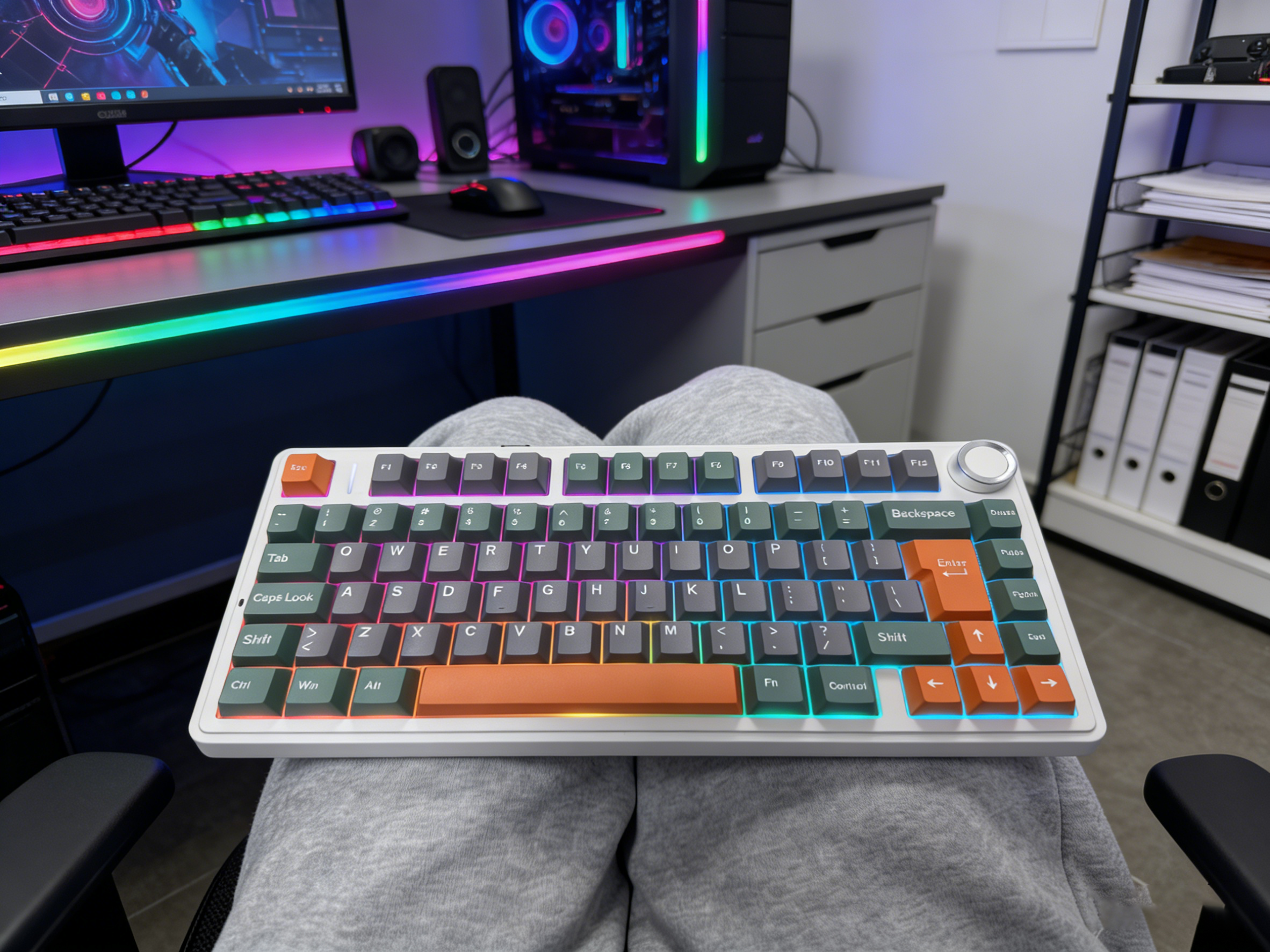
You can change the color of your Aula F75 keyboard without any software. The built-in controls make it easy. Just press the Fn key together with the right arrow key. Each time you press this combo, the keyboard cycles through different colors and lighting modes. Want to pause on a color you like? Stop pressing when you see your favorite shade.
If you want to adjust the brightness, press Fn plus the up or down arrow keys. This lets you make the lights brighter or dimmer. You can also turn the lights off completely by holding Fn and tapping the spacebar. These shortcuts help you set the mood for gaming, studying, or just relaxing.
- Tip: Try different color modes to match your desk setup or your mood. You might find a new favorite look.
RGB Customization
You can take things further with RGB customization. The Aula Keyboard software gives you full control over lighting effects. After you install the software, connect your keyboard and open the program. You will see options to:
Adjust the lighting effects to reflect your gaming or work setup
Choose from preset color patterns or create your own
Set different colors for each key if you want a unique style
The software lets you save your favorite profiles. You can switch between them anytime. If you like a calm look, pick a single color. If you want something bold, try a rainbow wave or breathing effect. The Aula F75 makes it simple to show off your style.
- Note: Customizing your keyboard’s RGB lighting can make your workspace feel more personal and fun.
Aula Keyboard Reset Steps
F75 Reset Methods
Sometimes your Aula Keyboard F75 might act up or stop responding. You can fix many problems with a simple reset. Here’s how you do it:
Unplug your keyboard from your computer or turn off Bluetooth.
Most Aula keyboards (including the F75) can usually be reset to factory settings by holding down Fn + Esc for 3-5 seconds. Fn + Space is typically used to reset lighting effects or record lighting.
Watch for the lights to flash. This means your keyboard has reset.
Plug the keyboard back in or reconnect Bluetooth.
You just restored the keyboard to its default settings. This step clears custom lighting, macros, and profiles. If you want to start fresh, this reset works well.
- Tip: Save your favorite settings before you reset. You can reload them later using the Aula software.
FAQ
How do you download Aula Keyboard software?
Just visit the official Aula website. Click the “Support” or “Download” section. Choose your keyboard model. Download and install the software on your computer.
Is the Aula Keyboard F75 good for gaming?
Yes! You get fast response times, customizable RGB lighting, and hot-swappable switches. Many gamers love the smooth feel and reliable performance.
How do you connect Aula Keyboard F75 via Bluetooth?
Turn on your keyboard.
Press
Fn + Q/W/Eto enter pairing mode.Select “Aula F75” on your device’s Bluetooth list.

Add comment
You must be logged in to post a comment.